
Raspberry Pi - Bash Colors
Check you shell to be default to bash if not already:
Here's how to set Bash as your default login shell on Debian / Raspberry Pi OS:
Step1. Check current shell
Run this first to see what you're currently using:
echo $SHELLStep2. Set Bash as default shell
Run the following command:
chsh -s /bin/bash- It will ask for your password.
- Type it and press Enter.
Step3. Verify the change
cat /etc/passwd | grep ^pi:You should see /bin/bash at the end of the line for the pi user.
Step4. Apply the change
Log out and log back in (or reboot):
logoutOr if you're using SSH, just close the connection and reconnect.
After logging back in, run echo $SHELL again — it should show /bin/bash.
Alternative method (if chsh doesn't work)
sudo usermod -s /bin/bash piThen log out and back in.
Change the colors of the shell do the following steps.
Step 1: Better organization (recommended)
Many people keep aliases separate:
# Create a dedicated aliases file
nano ~/.bash_aliases# Safety aliases
alias rm='rm -i'
alias cp='cp -i'
alias mv='mv -i'
# Convenience
alias vi='vim'
alias tailf='tail -f'
# LS colors
LS_COLORS='rs=0:di=01;44:ln=01;36:mh=00:pi=40;33:so=01;35:do=01;35:bd=40;33;01:cd=40;33;01:or=40;31;01:su=37;41:sg=30;43:ca=30;41:tw=30;42:ow=34;42:st=37;44:ex=01;32:*.tar=01;31:*.tgz=01;31:*.arj=01;31:*.taz=01;31:*.lzh=01;31:*.lzma=01;31:*.tlz=01;31:*.txz=01;31:*.zip=01;31:*.z=01;31:*.Z=01;31:*.dz=01;31:*.gz=01;31:*.lz=01;31:*.xz=01;31:*.bz2=01;31:*.bz=01;31:*.tbz=01;31:*.tbz2=01;31:*.tz=01;31:*.deb=01;31:*.rpm=01;31:*.jar=01;31:*.rar=01;31:*.ace=01;31:*.zoo=01;31:*.cpio=01;31:*.7z=01;31:*.rz=01;31:*.jpg=01;35:*.jpeg=01;35:*.gif=01;35:*.bmp=01;35:*.pbm=01;35:*.pgm=01;35:*.ppm=01;35:*.tga=01;35:*.xbm=01;35:*.xpm=01;35:*.tif=01;35:*.tiff=01;35:*.png=01;35:*.svg=01;35:*.svgz=01;35:*.mng=01;35:*.pcx=01;35:*.mov=01;35:*.mpg=01;35:*.mpeg=01;35:*.m2v=01;35:*.mkv=01;35:*.ogm=01;35:*.mp4=01;35:*.m4v=01;35:*.mp4v=01;35:*.vob=01;35:*.qt=01;35:*.nuv=01;35:*.wmv=01;35:*.asf=01;35:*.rm=01;35:*.rmvb=01;35:*.flc=01;35:*.avi=01;35:*.fli=01;35:*.flv=01;35:*.gl=01;35:*.dl=01;35:*.xcf=01;35:*.xwd=01;35:*.yuv=01;35:*.cgm=01;35:*.emf=01;35:*.axv=01;35:*.anx=01;35:*.ogv=01;35:*.ogx=01;35:*.aac=00;36:*.au=00;36:*.flac=00;36:*.mid=00;36:*.midi=00;36:*.mka=00;36:*.mp3=00;36:*.mpc=00;36:*.ogg=00;36:*.ra=00;36:*.wav=00;36:*.axa=00;36:*.oga=00;36:*.spx=00;36:*.xspf=00;36:'
export LS_COLORS
# Detect OS name
if [ -f /etc/os-release ]; then
OS_NAME=$(awk -F= '/^NAME/{print $2}' /etc/os-release | tr -d '"')
else
OS_NAME="Unknown"
fi
export PS1="\[$(tput bold)\]\[$(tput setaf 1)\]\[$(tput setab 8)\]\u\[$(tput setaf 5)\]@\[$(tput setaf 1)\]$(hostname) \[$(tput setaf 2)\]: $(uname) : \[$(tput setaf 6)\]\d \t : ${OS_NAME}\[$(tput sgr0)\]\n\[$(tput sgr0)\][\w]\$ "Step 2: Testing the Prompt
Option 1 : Logout and back in
Option 2 : Reload:
source ~/.bash_aliasesResult
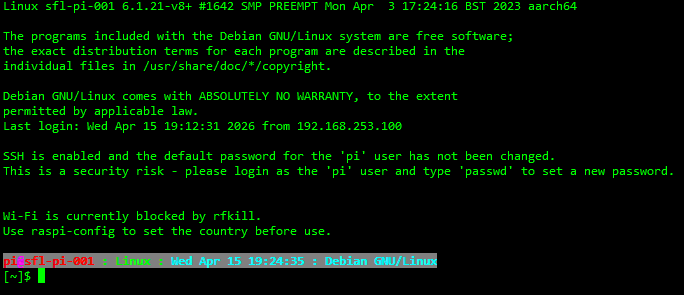
Add VIM colors to your shell
Step1. Install Git (and Vim if not already installed)
sudo apt update
sudo apt install git vim -y
Step2. Clone the vim-colorschemes repository
git clone https://github.com/flazz/vim-colorschemes.git ~/.vim/This will create the ~/.vim/colors/ directory with hundreds of color schemes (including desert.vim).
Step3. Set the desert colorscheme properly (Recommended way)
On Debian/Raspberry Pi OS, it’s better not to copy files to /etc/vimrc.local (that file is not always sourced reliably).
Instead, create or edit your personal ~/.vimrc file:
mkdir -p ~/.vim/colors
cp ~/.vim/colors/desert.vim ~/.vim/colors/   # just in case

cat > ~/.vimrc << EOF
syntax on
colorscheme desert
EOF
Alternative: One-liner to do everything
Run these commands one by one:
sudo apt update && sudo apt install git vim -y

git clone https://github.com/flazz/vim-colorschemes.git ~/.vim/

cat > ~/.vimrc << 'EOF'
syntax on
colorscheme desert
set background=dark
EOF