NAS
Anything about all different types of NAS
Synology, TrueNAS, QNAP
- TrueNAS - Login PS1 Prompt with Warning and Bash Colors
- TrueNAS - SCALE Create a local Backup and Send to S3 Buckets
TrueNAS - Login PS1 Prompt with Warning and Bash Colors
Change the colors of the shell do the following steps:
Step 1:
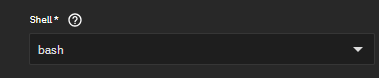
Change the shell on the user in Credentials/Users and then Edit the user you are using to log in and change the following.
Step 2:
Add the following entries to create the default files for any login
Creating Aliases
sudo cat > /etc/profile.d/custom-aliases.sh << EOF
# Common interactive aliases for all users

alias rm='rm -i'
alias cp='cp -i'
alias mv='mv -i'
alias vi='vim'
alias tailf='tail -f'
EOF
Server Warning
sudo tee /etc/profile.d/custom-prod-warning.sh > /dev/null << 'EOF'
# /etc/profile.d/custom-prod-warning.sh
# Production warning banner – only for real interactive logins

# 1. Exit immediately if this is not an interactive shell
[[ $- != *i* ]] && return

# 2. Exit if we don't have a real terminal
[[ -t 0 && -t 1 ]] || return

# 3. Exit if SSH is running a forced command (rsync, scp, ansible, etc.)
#    OpenSSH sets SSH_ORIGINAL_COMMAND in these cases
[[ -n "${SSH_ORIGINAL_COMMAND:-}" ]] && return

# --- Safe to show the banner from here ---

RED='\033[1;31m'
YELLOW='\033[1;33m'
NC='\033[0m'

echo
if command -v figlet >/dev/null 2>&1; then
    figlet -f big "PRODUCTION" | while IFS= read -r line; do
        printf '%b%s%b\n' "$RED" "$line" "$NC"
    done
    figlet -f big "SERVER" | while IFS= read -r line; do
        printf '%b%s%b\n' "$RED" "$line" "$NC"
    done
else
    echo -e "${RED}***** PRODUCTION SERVER!! *****${NC}"
fi

echo
echo -e "${YELLOW} *** EXTREME CAUTION REQUIRED ***${NC}"
echo -e "${RED}This is a LIVE PRODUCTION system.${NC}"
echo -e "${RED}Unauthorized access is strictly prohibited.${NC}"
echo -e "${RED}All activity is logged and monitored.${NC}"
echo -e "${YELLOW}Think twice before running commands!${NC}"
echo
EOF
Creating Colorful Prompts
sudo tee /etc/profile.d/custom-prompt-and-colors.sh > /dev/null << 'EOF'
# Custom LS_COLORS and improved multi-line colored prompt

# Vibrant LS_COLORS (directories bold blue on gray, etc.)
LS_COLORS='rs=0:di=01;44:ln=01;36:mh=00:pi=40;33:so=01;35:do=01;35:bd=40;33;01:cd=40;33;01:or=40;31;01:su=37;41:sg=30;43:ca=30;41:tw=30;42:ow=34;42:st=37;44:ex=01;32:*.tar=01;31:*.tgz=01;31:*.arj=01;31:*.taz=01;31:*.lzh=01;31:*.lzma=01;31:*.tlz=01;31:*.txz=01;31:*.zip=01;31:*.z=01;31:*.Z=01;31:*.dz=01;31:*.gz=01;31:*.lz=01;31:*.xz=01;31:*.bz2=01;31:*.bz=01;31:*.tbz=01;31:*.tbz2=01;31:*.tz=01;31:*.deb=01;31:*.rpm=01;31:*.jar=01;31:*.rar=01;31:*.ace=01;31:*.zoo=01;31:*.cpio=01;31:*.7z=01;31:*.rz=01;31:*.jpg=01;35:*.jpeg=01;35:*.gif=01;35:*.bmp=01;35:*.pbm=01;35:*.pgm=01;35:*.ppm=01;35:*.tga=01;35:*.xbm=01;35:*.xpm=01;35:*.tif=01;35:*.tiff=01;35:*.png=01;35:*.svg=01;35:*.svgz=01;35:*.mng=01;35:*.pcx=01;35:*.mov=01;35:*.mpg=01;35:*.mpeg=01;35:*.m2v=01;35:*.mkv=01;35:*.ogm=01;35:*.mp4=01;35:*.m4v=01;35:*.mp4v=01;35:*.vob=01;35:*.qt=01;35:*.nuv=01;35:*.wmv=01;35:*.asf=01;35:*.rm=01;35:*.rmvb=01;35:*.flc=01;35:*.avi=01;35:*.fli=01;35:*.flv=01;35:*.gl=01;35:*.dl=01;35:*.xcf=01;35:*.xwd=01;35:*.yuv=01;35:*.cgm=01;35:*.emf=01;35:*.axv=01;35:*.anx=01;35:*.ogv=01;35:*.ogx=01;35:*.aac=00;36:*.au=00;36:*.flac=00;36:*.mid=00;36:*.midi=00;36:*.mka=00;36:*.mp3=00;36:*.mpc=00;36:*.ogg=00;36:*.ra=00;36:*.wav=00;36:*.axa=00;36:*.oga=00;36:*.spx=00;36:*.xspf=00;36:'
export LS_COLORS

# Build a combined OS_NAME: Debian base + TrueNAS SCALE build
if [ -f /etc/os-release ]; then
    . /etc/os-release
    OS_NAME="${PRETTY_NAME}"
fi
if [ -f /etc/version ]; then
        TRUENAS_VER="TrueNAS SCALE ($(cat /etc/version 2>/dev/null))"
        OS_NAME="${OS_NAME} / ${TRUENAS_VER}"
fi
export OS_NAME


# Only set up the fancy colored prompt in real interactive terminals
if [[ $- == *i* ]] && [[ -t 0 && -t 1 ]] && [[ -z "${SSH_ORIGINAL_COMMAND:-}" ]]; then

    # Color and style variables
    RESET=$(tput sgr0)
    BOLD=$(tput bold)
    BG_GRAY=$(tput setab 8)
    FG_RED=$(tput setaf 1)
    FG_MAGENTA=$(tput setaf 5)
    FG_GREEN=$(tput setaf 2)
    FG_CYAN=$(tput setaf 6)

    # Multi-line prompt – all non-printing sequences wrapped in \[ \]
    PS1="\n"
    PS1+="\[${BOLD}${BG_GRAY}${FG_RED}\]\u"
    PS1+="\[${FG_MAGENTA}\]@"
    PS1+="\[${FG_RED}\]\`hostname\`"
    PS1+="\[${FG_GREEN}\] : \`uname\` : "
    PS1+="\[${FG_CYAN}\]\d \t : \${PLANTID:+\$PLANTID }"
    PS1+="\[${RESET}\]\n"
    PS1+="\[${FG_CYAN}\][\w]"
    PS1+="\[${RESET}${BOLD}\] \\$ \[${RESET}\]"

    export PS1
fi
EOF
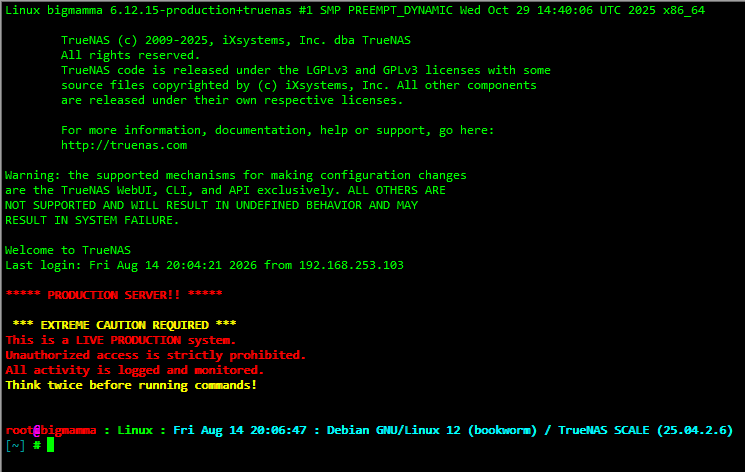
Result
TrueNAS - SCALE Create a local Backup and Send to S3 Buckets
To automate backing up your TrueNAS configuration directly to Amazon S3 or any S3-compatible cloud storage, you need to create a local backup script and pair it with a TrueNAS Cloud Sync task
TrueNAS automatically saves daily configuration databases locally to your system dataset, but exporting it safely off-site requires grabbing the full archive (with the secret seed) via a middleware command (midclt).
Step 1: Create a Local Dataset and Script
First, create an isolated directory on your storage pool where TrueNAS will output the configuration files before uploading them. [1]
Step 2: Automate the Script via Cron Job
Schedule TrueNAS to execute this script automatically every day before sending the files offsite.
Step 3: Link Your S3 Bucket Credentials
Now, prepare TrueNAS to communicate securely with your S3 bucket. [1]
- Go to Credentials > Backup Credentials > Cloud Credentials and click Add.
- Name the credential (e.g.,
AWS-S3-Backup). - Under Provider, select Amazon S3 (or generic S3 if using Wasabi, Backblaze B2, or MinIO).
- Paste your cloud account's Access Key ID and Secret Access Key.
- Click Verify to confirm the handshake with AWS is successful, then click Save
Step 4: Configure the Offsite S3 Cloud Sync Task
The final step uses TrueNAS's built-in replication tools to synchronize your backup folder to the cloud. [1]
💡 Pro-Tip: S3 Bucket Security
Because TrueNAS configuration files contain your system's password hashes, API tokens, and private networking configurations, it is highly recommended to enable Server-Side Encryption (SSE-S3) and Bucket Versioning directly inside your AWS S3 Console. This adds a layer of defense against accidental deletion or ransomware targeting your NAS shares.