# Windows 11 - Bypass Microsoft Account Requirement
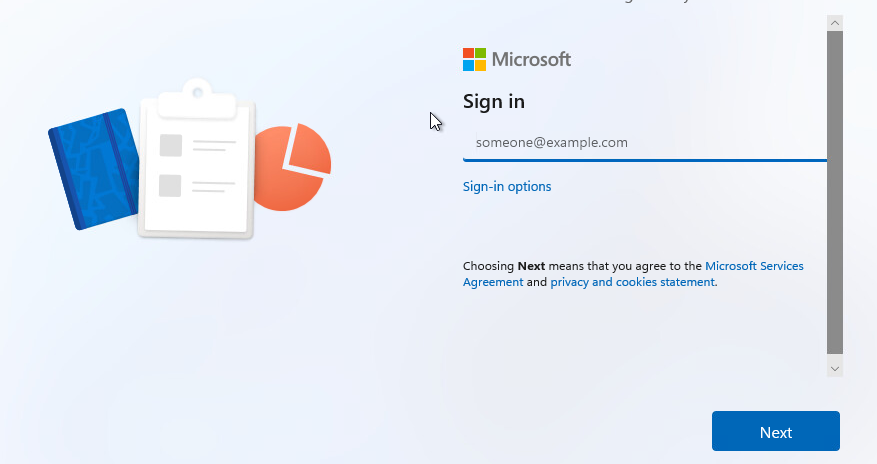
Once on the following screen make sure you disconnect from the internet or have no internet connection and hit the "Shift-F10" keys to open a command prompt.
[](https://docs.sflservicesllc.com/uploads/images/gallery/2024-09/RDAimage.png)
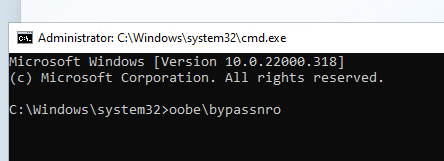
Type this in the command prompt window "oobe\\bypassnro"
[](https://docs.sflservicesllc.com/uploads/images/gallery/2024-09/UN2image.png)
The computer will reboot
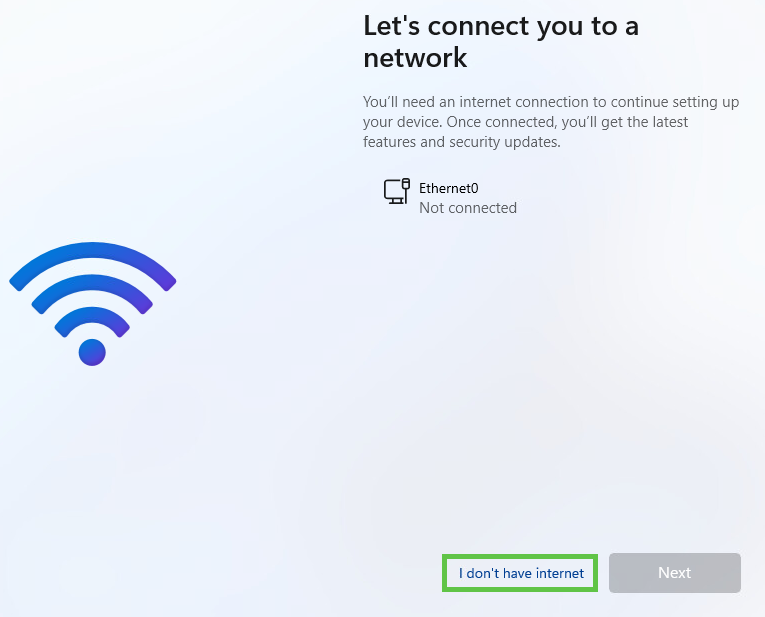
Once you get to this screen click on the option "I don't have internet"
[](https://docs.sflservicesllc.com/uploads/images/gallery/2024-09/UOaimage.png)
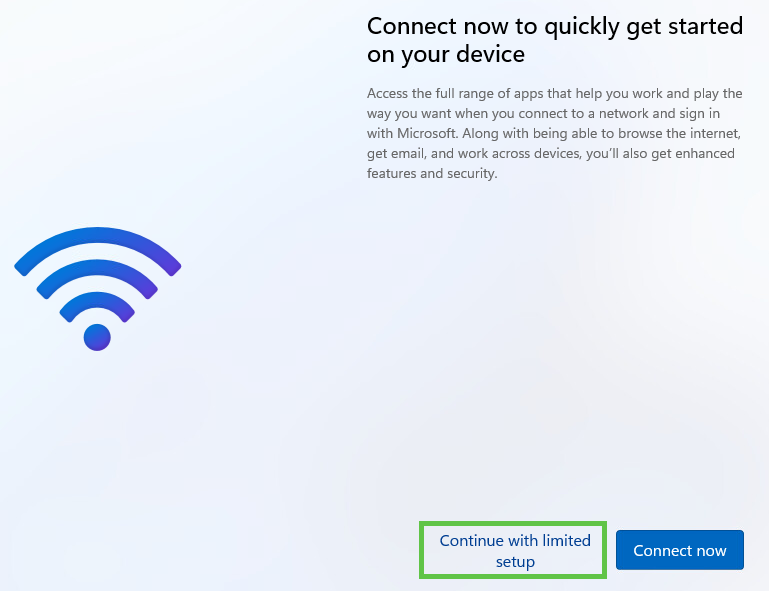
Once on the next screen click on the option "Continue with limited setup"
[](https://docs.sflservicesllc.com/uploads/images/gallery/2024-09/Mwuimage.png)
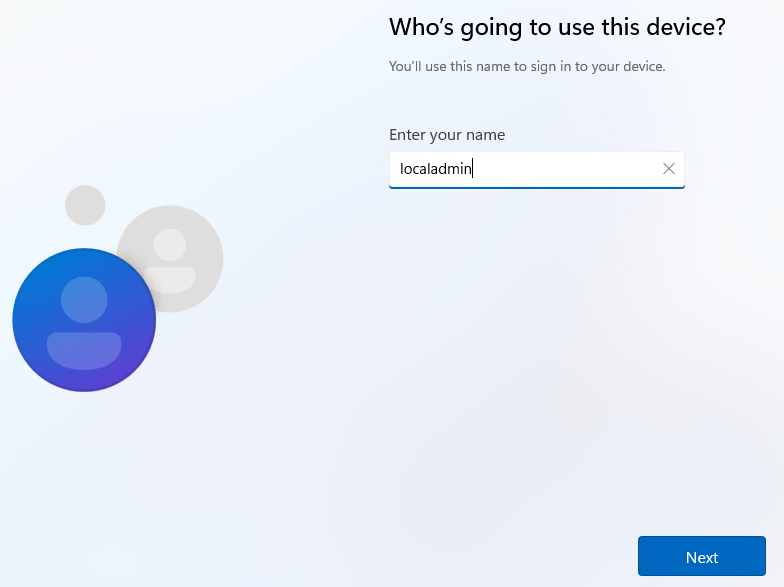
Once on the next screen add the a name to create a local account
[](https://docs.sflservicesllc.com/uploads/images/gallery/2024-09/madimage.png)
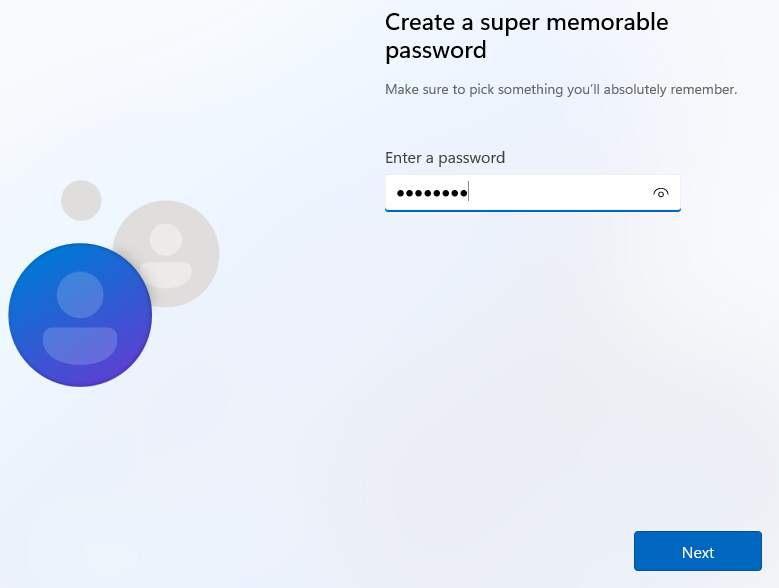
On the next screen enter a password to use
[](https://docs.sflservicesllc.com/uploads/images/gallery/2024-09/bDwimage.png)