Linux
Copyright Notice
SFL Services LLC has prepared this document for use only by their staff, agents, customers and prospective customers. Companies, names and data used as examples in this document are fictitious unless otherwise noted. No part of this document may be reproduced or transmitted in any form or by any means, electronic or mechanical, for any purpose, without the express written permission of SFL Services LLC, who reserve the right to change specifications and other information contained herein without prior notice. The reader should consult SFL Services LLC to determine whether any such changes have been made.
Licensing and Warranty
The terms and conditions governing the licensing of SFL Services LLC software consist solely of those set forth in the written contracts between SFL Services LLC and its customers. Except as expressly provided for in the warranty provisions of those written contracts, no representation or other affirmation of fact contained in this document, including but not limited to statements regarding capacity, suitability for use or performance of products described herein, shall be deemed to be a warranty by SFL Services LLC for any purpose, or give rise to any liability of SFL Services LLC whatsoever.
Liability
In no event shall SFL Services LLC be liable for any incidental, indirect, special or consequential damages whatsoever (including but not limited to lost profits) arising out of or related to this document or the information contained in it, even if SFL Services LLC had been advised, knew or should have known of the possibility of such damages, and even if they had acted negligently.
- Linux - Setting up a Logging Server
- Linux - How to Increase the size of a Linux LVM by adding a new disk
- Linux - Bag of Tricks
- Linux - How to Decrease an LVM Partition
- Linux - Increase the size of a LVM Partition
- Linux - Setting up an SSL secured Webserver with CentOS
- Linux - Samba Setup Rocky 9
- Linux - Samba Setup No Authentication
- Linux - Setup Rocky 9 SMTP Server
- Linux - Setup RedHat 10 SMTP Server
- Linux - RHeL Subscription
- RedHat - Install a Kubernetes Cluster on RHEL 9.x | Rocky 9.x: A Step-by-Step Guide
- Linux - Commands to Know
- Linux - Install KVM
- RedHat - Install NFS Shares
- Linux - Re-Mapping Drives or Combining Drives
- Command - Cmnd_Alias
- Bash - Add Symbolic Links Subdirectories
- Linux Server - Install RedHat 9 SSH configuration
- Linux - How to use rClone
Linux - Setting up a Logging Server
Summary
This is to setup a logging server to capture logs from any servers on your network.
Prerequisites
Install of a RedHat or Rocky Linux minimal install
Configuration
You will need to edit the file "/etc/rsyslog.conf"
Editing the file
vi /etc/rsyslog.confYou will need to change to the following to allow port 514 to be open
# Provides UDP syslog reception
# for parameters see http://www.rsyslog.com/doc/imudp.html
module(load="imudp") # needs to be done just once
input(type="imudp" port="514")

# Provides TCP syslog reception
# for parameters see http://www.rsyslog.com/doc/imtcp.html
module(load="imtcp") # needs to be done just once
input(type="imtcp" port="514")
Then simply restart the rsyslog deamon
systemctl restart rsyslogMulti Host Logging to one server
vi /etc/rsyslogAdd the following
Before this entry "#### RULES ####"
$template RemoteLogs,"/var/log/%HOSTNAME%/%PROGRAMNAME%.log"
. ?RemoteLogs
This will enable for all host/servers to log to their own folders
The entry should look like this
# Provides TCP syslog reception
# for parameters see http://www.rsyslog.com/doc/imtcp.html
module(load="imtcp") # needs to be done just once
input(type="imtcp" port="514")

#custom
$template RemoteLogs,"/var/log/%HOSTNAME%/%PROGRAMNAME%.log"
*.* ?RemoteLogs
& ~

#### RULES ####
The directive $template tells , rsyslog daemon to gather and write all of the received remote messages to seperate logs under /var/log, based on the hostname (client machine name) and remote client facility (program/application) that generated the messages as defined by the settings present in the template RemoteLogs. The second line “*.* ?RemoteLogs” means record messages from all facilities at all severity levels using the RemoteLogs template configuration. The third lines makes the append happen.
Setup Log Rotate
Create a log file configuration file
vi /etc/logrotate.d/sflthen add the following, and change the ending folder name(s)
/var/log/sfl*
/var/log/SFL*
/var/log/vcenter*
/var/log/MFB*
/var/log/mfb*
{
    rotate 2
    maxsize 200k
    daily
}
Run to make sure the config is good
logrotate -d /etc/logrotate.d/sflSetup Host Servers
This is what to setup on the servers you wish to log to one server
You must login to the server and then edit the following file
vi /etc/rsyslog.confOnce opened you have to add at the end of the file the following to log everything
*.* @192.168.253.86:514   # use @ for UDP Protocal
*.* @@192.168.253.86:514   # use @@ for TCP Protocal
You can also setup specific logging by doing the following
auth.* @192.168.253.86:514 # only for authentication based recordsResults
This is what your folder will look like with the host name of the server or device
drwx------  2 root   root        42 Aug 29 22:30 RT-AC5300-RANGE-25D1EC7-C
drwx------  2 root   root        82 Aug 29 22:32 SFL-LIN-000
drwx------  2 root   root        87 Aug 29 22:32 sfl-web-004
This is a look within a folder of a server
[/var/log]# cd SFL-LIN-000/

root@SFL-LIN-000.ONLING.COM : Linux : Thu Aug 29 22:35:01 :
[/var/log/SFL-LIN-000]# ls -lrt
total 16
-rw------- 1 root root 850 Aug 29 22:30 rsyslogd.log
-rw------- 1 root root  56 Aug 29 22:32 sssd_kcm.log
-rw------- 1 root root 948 Aug 29 22:32 systemd.log
-rw------- 1 root root 251 Aug 29 22:32 CROND.log
Linux - How to Increase the size of a Linux LVM by adding a new disk
Important Notes: Be very careful when working with the commands in this article as they have the potential to cause a lot of damage to your data. If you are working with virtual machines make sure you take a snapshot of your virtual machine beforehand, or otherwise have some other form of up to date backup before proceeding. It could also be worth cloning the virtual machine first and testing out this method on the clone.
Throughout my examples I will be working with a VMware virtual machine running Debian 6, this was set up with a 20gb disk and we will be adding a new 20gb disk for a total LVM size of 40gb.
Although my examples make use of virtual machines, this method would work with a physical server as well if you have added a new physical disk in and want to use that to expand the LVM.
Identifying the partition type
As this method focuses on working with LVM, we will first confirm that our partition type is actually Linux LVM by running the below command.
fdisk -l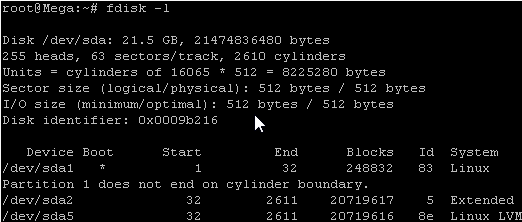
As you can see in the above image /dev/sda5 is listed as “Linux LVM” and it has the ID of 8e. The 8e hex code shows that it is a Linux LVM, while 83 shows a Linux native partition. Now that we have confirmed we are working with an LVM we can continue. For increasing the size of a Linux native partition (hex code 83) see this article.
Below is the disk information showing that our initial setup only has the one 20gb disk currently, which is under the logical volume named /dev/mapper/Mega-root – this is what we will be expanding with the new disk.
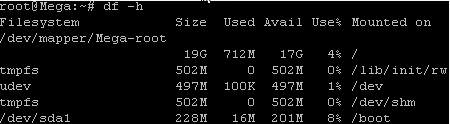
Note that /dev/mapper/Mega-root is the volume made up from /dev/sda5 currently – this is what we will be expanding.
Adding a new virtual hard disk
First off we add a new disk to the virtual machine. This is done by right clicking the virtual machine in vSphere, selecting edit settings and then clicking the “Add…” button which is used to add hardware to the virtual machine.
Select hard disk and click next.
Select create a new virtual disk and click next.
Select the disk size you want to add, I will be using 20gb as previously mentioned. I have also selected to store the disk with the virtual machine, it will store on the same datastore as the virtual machines files, this will be fine for my test purposes. Click next once complete.
Select next on the advanced options page.
Review everything and click finish once you have confirmed the settings.
You will then see the new disk under the hardware devices tab and it will be labelled with (adding) which means it will not apply until you click OK, so click OK to complete the process.
Detect the new disk space
In my test for this example, as soon as I added the additional disk in through VMware it displayed through “fdisk -l” for me, you can see the second disk labelled /dev/sdb (I have cropped out the information on /dev/sda1 to make it less cluttered here). It is also worth noting that it shows as not containing a valid partition table, we are about to set this up.
This may not however be the case for you, to avoid reboot you may need to rescan your devices, you can try this with the below command. Note that you may need to change host0 depending on your setup.
echo "- - -" > /sys/class/scsi_host/host0/scanIf you have issues detecting the new disk, just perform a reboot and it should then display correctly.
Partition the new disk
We now need to partition the new /dev/sdb disk so that it can be used, this is done by using fdisk.
fdisk /dev/sdbThis should provide us with the below prompt, the inputs I have entered in are shown in bold.
‘n’ was selected for adding a new partition.
root@Mega:~# fdisk /dev/sdb
Command (m for help): n
‘p’ is then selected as we are making a primary partition.
Command action
   e   extended
   p   primary partition (1-4)
p
As this is a new disk, we do not yet have any partitions on it so we will use partition 1 here.
Partition number (1-4): 1Next we press the enter key twice, as by default the first and last cylinders of the unallocated space should be correct.
First cylinder (1-2610, default 1): "enter"
Using default value 1
Last cylinder, +cylinders or +size{K,M,G} (1-2610, default 2610): "enter"
Using default value 2610
‘t’ is selected to change to a partitions system ID, in this case we change to ’1′ automatically as this is currently our only partition.
Command (m for help): t
Selected partition 1
The hex code ’8e’ was entered as this is the code for a Linux LVM which is what we want this partition to be, as we will be joining it with the original Linux LVM which is currently using /dev/sda5.
Hex code (type L to list codes): 8e
Changed system type of partition 1 to 8e (Linux LVM)
‘w’ is used to write the table to disk and exit, all changes that have been done will be saved and then you will be exited from fdisk.
Command (m for help): w
The partition table has been altered!

Calling ioctl() to re-read partition table.
Syncing disks.
By using “fdisk -l” now you will be able to see that /dev/sdb1 is listed, this is the new partition created on our newly added /dev/sdb disk and it is currently using all 20gb of space.
Increasing the logical volume
Next we will use the pvcreate command to create a physical volume for later use by the LVM. In this case the physical volume will be our new /dev/sdb1 partition.
root@Mega:~# pvcreate /dev/sdb1
  Physical volume "/dev/sdb1" successfully created
Now we need to confirm the name of the current volume group using the vgdisplay command. The name will vary depending on your setup, for me it is the name of my test server. vgdisplay provides plenty of information on the volume group, I have only shown the name and the current size of it for this example.
root@Mega:~# vgdisplay
  --- Volume group ---
  VG Name               Mega
  VG Size               19.76 GiB
Now using the vgextend command, we extend the ‘Mega’ volume group by adding in the physical volume of /dev/sdb1 which we created using the pvcreate command just before.
root@Mega:~# vgextend Mega /dev/sdb1
  Volume group "Mega" successfully extended
Using the pvscan command we scan all disks for physical volumes, this should confirm the original /dev/sda5 partition and the newly created physical volume /dev/sdb1
root@Mega:~# pvscan
  PV /dev/sda5   VG Mega   lvm2 [19.76 GiB / 0    free]
  PV /dev/sdb1   VG Mega   lvm2 [19.99 GiB / 19.99 GiB free]
  Total: 2 [39.75 GiB] / in use: 2 [39.75 GiB] / in no VG: 0 [0   ]
Next we need to increase the logical volume with the lvextend command (rather than the physical volume which we have already done). This means we will be taking our original logical volume and extending it over our new disk/partition/physical volume of /dev/sdb1.
Firstly confirm the name of the logical volume using lvdisplay. The name will vary depending on your setup.
root@Mega:~# lvdisplay
  --- Logical volume ---
  LV Name                /dev/Mega/root
  LV Size                18.91 GiB
The logical volume is then extended using the lvextend command. We are extending the original logical volume of /dev/Mega/root over the newer /dev/sdb1
root@Mega:~# lvextend /dev/Mega/root /dev/sdb1
  Extending logical volume root to 38.90 GiB
  Logical volume root successfully resized
If you like you can then run vgdisplay and lvdisplay again to confirm the size of the volume group and logical volume respectively, I have done this and I now have the following.
  LV Size                38.90 GiB
  VG Size                39.75 GiB
However if you run a “df” command to see available disk space it will not have changed yet as there is one final step, we need to resize the file system using the resize2fs command in order to make use of this space.
root@Mega:~# resize2fs /dev/Mega/root
resize2fs 1.41.12 (17-May-2010)
Filesystem at /dev/Mega/root is mounted on /; on-line resizing required
old desc_blocks = 2, new_desc_blocks = 3
Performing an on-line resize of /dev/Mega/root to 10196992 (4k) blocks.
The filesystem on /dev/Mega/root is now 10196992 blocks long.
Alternatively if you’re running the XFS file system (default as of RedHat/CentOS 7) you can grow the file system with “xfs_growfs /dev/Mega/root”.
Rather than resizing the file system manually, you could instead use the -r option of the lvextend command which will automatically resize the file system to make use of the additional disk space.
The resize took a minute or so to complete (it will depend on the disk speed and size), running the “df” command now shows the correct disk space for /dev/mapper/Mega-root
Linux - Bag of Tricks
Introduction
This document has many useful command.
Change Files and Folder Permissions
To change the permissions of files to 655 and subfolders to 755 (which is the common practice for directories to allow execution for navigating into them) within a specified directory and its subdirectories, you can use the find command with chmod.
Explanation of permissions:
-
655 for files:
- Owner: Read (4) + Write (2) = 6
- Group: Read (4) + Execute (1) = 5
- Others: Read (4) + Execute (1) = 5
-
755 for directories:
- Owner: Read (4) + Write (2) + Execute (1) = 7
- Group: Read (4) + Execute (1) = 5
- Others: Read (4) + Execute (1) = 5
Command
find /path/to/directory -type f -exec chmod 655 {} +
find /path/to/directory -type d -exec chmod 755 {} +

find /path/to/directory \( -type d -exec chmod 755 {} + \) -o \( -type f -exec chmod 644 {} + \)

chmod -R u+rwX,go+rX,go-w /path/to/directory

find /path/to/directory -type d -print0 | xargs -0 chmod 755
find /path/to/directory -type f -print0   | xargs -0 chmod 644

find /path/to/directory -print0 \
  \( -type d -exec chmod 755 {} + \) \
  -o \( -type f -exec chmod 644 {} + \)
Linux Set Time Examples
You can also simplify format using following syntax:
date +%Y%m%d -s "20081128"To set time use the following syntax:
date +%T -s "10:13:13"Use the following syntax to set new data and time:
date --set="STRING"For example, set new data to 2 Oct 2006 18:00:00, type the following command as root user:
date -s "2 OCT 2006 18:00:00"OR
date --set="2 OCT 2006 18:00:00"Rclone Copy Examples
Click here for the page HERE
Rsync Copy Examples
This is to move files from one server to another
Ending the folder WITHOUT a “/” slash means copy that folder everything in that folder
Ending the folder WITH a “/” slash means copy everything within that folder
Example for “remote to local” location
rsync -chavzP --stats --progress -e ssh user@remote_host:/remote_folder/dir1/ /local_folder/dir1/Example for “local to remote” location
rsync -chavzP --stats --progress -e ssh /local_folder/dir1/ user@remote_host:/remote_folder/dir1/Rsync Auto Login while sending
Example to add a Rsync key on the remote server
On the local server simply login as a given user ex: ROOT or USER
ssh-keygen -t rsaIf it already exists simply hit "n"
| Generating public/private rsa key pair. Enter file in which to save the key (/root/.ssh/id_rsa): /root/.ssh/id_rsa already exists. Overwrite (y/n)? |
If not then simply hit enter through all options
Example: of using ROOT
| Generating public/private rsa key pair. Enter file in which to save the key (/root/.ssh/id_rsa): Enter passphrase (empty for no passphrase): Enter same passphrase again: Your identification has been saved in /root/.ssh/id_rsa Your public key has been saved in /root/.ssh/id_rsa.pub The key fingerprint is: SHA256:JoMN/cxvsqZWBHws4eyrU5Q0F0qRe//44qdrrjiQmbU root@DSS-US-TMAP-XXX The key's randomart image is: +---[RSA 3072]----+ | .+=.. | | =B.+ | | ..=O | | ==+o | | = E=... | | o... oo | | ..o..++ o | | .oo+o==*. | +----[SHA256]-----+ You have mail in /var/spool/mail/root |
Run the following to add the key to the remote server, you can also use IP instead of host name
ssh-copy-id -i ~/.ssh/id_rsa.pub remuser@sfl-lin-001Example of using a USER you will have to enter yes and the USER password
|
/usr/bin/ssh-copy-id: INFO: Source of key(s) to be installed: "/root/.ssh/id_rsa.pub" Number of key(s) added: 1 Now try logging into the machine, with: "ssh 'remuser@sfl-lin-020'" |
Optional: If the command cannot be run above you can copy the key to the remote server manually into the “authorized_keys” file
cd
cd .ssh
vi authrized_keys
Optional: Change the permissions on the local server
chmod 600 ~/.ssh/*
chmod 711 ~/.ssh
chmod 711 ~
Synology Rsync
rsync -aXHmS --syno-acl /volum1/[xxx] /volume2/[xxx]-a, --archive archive mode; equals -rlptgoD (no -H,-A,-X)
-p, --perms preserve permissions
-X, --xattrs preserve extended attributes
-o, --owner preserve owner (super-user only)
-g, --group preserve group
--syno-acl copy Synology ACL data
I use the following options myself:
rsync -avhxWog --stats --backup --suffix $OLDSUFFIX --exclude-from=$RSYEXCL --syno-pseudo-root
No idea why I list options "og" since they're implied by -a, but it works...
Regards, Arild
PS: "rsync --help" lists all available options for rsync
Find and Replace String with sed
There are several versions of sed, with some functional differences between them. macOS uses the BSD version, while most Linux distributions come with GNU sed pre-installed by default. We’ll use the GNU version.
The general form of searching and replacing text using sed takes the following form:
sed -i 's/SEARCH_REGEX/REPLACEMENT/g' INPUTFILECop
-
-i - By default, sed writes its output to the standard output. This option tells sed to edit files in place. If an extension is supplied (ex -i.bak), a backup of the original file is created.
-
s - The substitute command, probably the most used command in sed.
-
/ / / - Delimiter character. It can be any character but usually the slash (/) character is used.
-
SEARCH_REGEX - Normal string or a regular expression to search for.
-
REPLACEMENT - The replacement string.
-
g - Global replacement flag. By default, sed reads the file line by line and changes only the first occurrence of the SEARCH_REGEX on a line. When the replacement flag is provided, all occurrences are replaced.
-
INPUTFILE - The name of the file on which you want to run the command.
Find and Replace String with sed within vi
This is to search and replace a file globally withing vi
:%s/search_string/replacement_string/gKill Users in Linux
This is to be used when trying to kill users using the connection, replace the ? with the number of the session.
pkill -KILL -t pts/?Create a CERT
First, you need to generate the private key and the Certificate Signing Request (CSR). You can do this via the openssl command:
openssl req -nodes -newkey rsa:2048 -keyout privatekey.key -out mail.csr Then, generate a signing request
openssl x509 -req -days 365 -in mail.csr -signkey privatekey.key -out secure.crtCreate a localhost cert on the server
openssl req -newkey rsa:2048 -nodes -keyout /etc/pki/tls/private/localhost.key -x509 -days 365 -out /etc/pki/tls/certs/localhost.crtMariadb Log Rotate
If log file is large, try if the logrotate
logrotate --force /etc/logrotate.d/mariadb
MySQL Fail to Start
If MySQL does not restart, it probably will not as the index of the log files will not be changed
|
cd /var/lib/mysql |
Configure Rsync
Useful for system migrations
Create a “/etc/rsyncd.conf” containing:
[root]
exclude = /dev /etc/fstab /proc /sys
path = /
read only = yes
list = yes
uid = root
gid = root
Enable and start:
systemctl enable rsyncd.service
systemctl start rsyncd.service
Change Run level
systemctl set-default multi-user.target
To switch from graphical to multi-user:
systemctl isolate multi-user.target;
Change Local settings
# timedatectl set-timezone Europe/London
# localectl set-locale LANG=en_GB.UTF-8
# localectl set-keymap uk
Temporary change
$ loadkeys us
Configure Alternate Authentication
authconfig-tui
SSD Considerations
Change the value of “issue_discards” option from 0 to 1 in “/etc/lvm/lvm.conf”
#
systemctl enable fstrim.timer
Adjust “/etc/fstab”
/dev/mapper/xxx /XXX xfs defaults,noatime,discard 0 0
Optionally set /tmp in RAM
# systemctl enable tmp.mount
Adding a Disk
# parted /dev/sdx
mklabel gpt
unit s
mkpart primary 2048s 100%
set 1 lvm on
quit
# pvcreate /dev/sdx1
# vgcreate rl_ssd /dev/sdx1
# lvcreate –L 50GB -n mysql rl_ssd
# mkfs.xfs /dev/rl-ssd/mysql
# blkid /dev/sdc
# chown mysql:mysql /var/lib/mysql
Growing a lvm partition
# parted /dev/sdc
(parted) unit b
(parted) print free
Number Start End Size Type File system Flags
1 31744B 5368709119B 5368677376B primary
5368709120B 21474836479B 16106127360B Free Space
(parted) resizepart 1 21474836479B
(parted) quit
# pvresize /dev/sdc1
Updating Bootloader configuration
/etc/default/grub
grub2-mkconfig -o /boot/grub2/grub.cfg
NMAP Scan for all Open Ports
TCP
sudo nmap -sT -p- onling.comUDP
sudo nmap -sU -p- onling.comLook for open Ports
nc -vz 24.29.248.88 514Trace route
sudo tracepath 24.29.248.88Looking at the Journal, this is an example to look at the mariadb process
journalctl -u mariadb -fSearch in sub folders
grep -r "MYSQL_HOST" . --include="compose.yaml" --include="docker-compose.yml"Change Lines in KIDSENV and make a backup of it with a .bak extentions
find . -type f -name "KIDSENV" -exec sed -i.bak 's/^KWSQL_LOG=query/#KWSQL_LOG=query/' {} +Delete file on the server
find . -type f \( -name "SQLQRY*" -o -name "SQLINFO" -o -name "SQLERROR" \) -deleteDelete files over 100M
find . -type f -size +100MDelete files over 100M and list them
find . -type f -size +100M -exec ls -lh {} +Grep files named TX*.DA that are only 1 month back and files lines that have RETDT or RETHD
find . -type f -name "TX*.DA" -mtime -30 -exec grep -iE "RETDT|RETHD" {} +Remove certain directory
find /path/to/drive/root -type d -name "@eaDir" -print0 | xargs -0 rm -rf
Linux - How to Decrease an LVM Partition
Note: In this example we are working in CentOS 7, some commands may differ in different Linux distributions. As of CentOS 7 the default file system is XFS which is not currently possible to shrink, this example is working with the ext4 file system.
In this example we will work through shrinking logical volume /var/centos/var from 10GB to 5GB.
Overview of Logical Volume Manager (LVM)
Before working through the resizing process it’s important you first understand some basic concepts around physical volumes, volume groups, logical volumes, and the file system.
-
Physical Volume (PV): This can be created on a whole physical disk (think /dev/sda) or a Linux partition.
-
Volume Group (VG): This is made up of at least one or more physical volumes.
-
Logical Volume (LV): This is sometimes referred to as the partition, it sits within a volume group and has a file system written to it.
-
File System: A file system such as ext4 will be on the logical volume.
LVM Resize – How to decrease or shrink the logical volume
To decrease the size of an LVM partition you must first decrease the file system within in order to avoid possible data corruption. As there is the potential for this to happen if you enter the command incorrectly, it is strongly recommended that you have a full backup of your data before proceeding. Shrinking a logical volume will give you more space in the volume group, meaning that you could instead extend another logical volume with this new found space.
The first step will depend on if you’re looking to shrink a LVM root volume, or non-root volume.
Shrinking a root volume
The root volume would typically be the logical volume that is mounted to /. You cannot unmount this to shrink it as it’s in use by the running operating system meaning that you will have to first boot from a Live CD to complete this. Once booted into the Live CD, you may first need to run the below command to pick up LVM volumes, however this usually happens during boot so may not be required, if in doubt just run it.
vgchange -a yShrinking a non-root volume
Alternatively if the volume you are shrinking is a non-root volume, that is any other volume not mounted to the root of the file system, you can unmount the volume as shown below to proceed. Please note that when you unmount the volume the data will not be available, so you may need to schedule down time and stop running applications that use data from it prior to unmounting. Unmount by specifying either the logical volume or the location it’s currently mounted to, in the below example we specify the logical volume which can be found in /dev/(vg-name)/(lv-name).
umount /dev/centos/varAll following steps now apply to both a root or non-root volume.
Before being able to attempt to shrink the size of an LVM volume, you must first run a file system check on it. If you don’t do this, you will get an error message and will not be able to proceed. This is a required step as resizing a file system in a bad state could cause data corruption. The -f flag makes the check run even if the file system appears clean, while -y assumes yes to all questions and will respond if asked to fix a problem.
e2fsck -fy /dev/centos/varNext you need to shrink the file system, to be safe we’re going to shrink the file system lower than what the logical volume will shrink to. This is because we don’t want to accidentally shrink the logical volume to a size lower than the file system in the next step, as this can result in corruption and data loss. Don’t worry, we’ll reclaim the space at the end.
The command below will shrink the file system so that it is only 4G in size total, note that what ever size you specify to shrink to you must have in free space within the file system otherwise you must first delete data.
resize2fs /dev/centos/var 4GOnce the file system has been reduced, we can shrink the size of the logical volume with the lvreduce command. Reduce this to the size that you want the volume to be, as specified by the -L flag. Instead if you want to reduce by a specified size, simply put a – in front of the size. Both are shown below for completeness, however you only need to run one.
To reduce to 5G
lvreduce -L 5G /dev/vg/disk-nameTo reduce by 5G
lvreduce -L -5G /dev/vg/disk-nameOnce you execute the lvreduce command you will get a warning advising the size you have chosen to reduce to so use this as a chance to confirm you’re shrinking the logical volume to a size that is NOT smaller than the size you previously shrunk the file system to. Once you have confirmed it’s fine to proceed enter ‘y’ and press enter.
After the logical volume has been lowered to the required size, run resize2fs on the volume as this will extend the file system to use all available space within the logical volume. This makes use of all remaining free space so that none is wasted from when we previously shrunk the file system to a lower size than the logical volume.
resize2fs /dev/centos/varAt this point all that’s left to do is mount the volume. If this was a root volume and you’re working within a Live CD, simply boot back into your primary Linux operating system.
If this was a non-root volume and you unmounted it to complete the reduction, simply mount it back. You can do this with ‘mount -a’ assuming you have the configuration already set in /etc/fstab, otherwise specify the logical volume and where it should mount to. Here we’re manually mounting to /mnt just for testing.
mount /dev/centos/var /mntAfter you’ve either booted back to primary operating system or completed the mount, check the space shown with the ‘df’ command to confirm it has been decreased as expected.
[root@CentOS7 /]# df -h
Filesystem               Size  Used Avail Use% Mounted on
/dev/mapper/centos-root  9.8G  1.4G  8.5G  14% /
devtmpfs                 908M     0  908M   0% /dev
tmpfs                    914M     0  914M   0% /dev/shm
tmpfs                    914M  8.6M  905M   1% /run
tmpfs                    914M     0  914M   0% /sys/fs/cgroup
/dev/sda1                497M   96M  402M  20% /boot
/dev/mapper/centos-var  4.8G   20M  4.6G   1% /mnt
In this example /dev/centos/var is correctly showing as shrunk down from the original 10G.
Linux - Increase the size of a LVM Partition
This will cover how to increase the disk space for a VMware virtual machine running Linux that is using logical volume manager (LVM). Firstly we will be increasing the size of the actual disk on the VMware virtual machine, so at the hardware level – this is the VM’s .vmdk file. Once this is complete we will get into the virtual machine and make the necessary changes through the operating system in order to take advantage of the additional space that has been provided by the hard drive being extended. This will involve creating a new partition with the new space, expanding the volume group and logical group, then finally resizing the file system.
Important Note: Be very careful when working with the commands in this article as they have the potential to cause a lot of damage to your data. If you are working with virtual machines make sure you take a snapshot of your virtual machine beforehand, or otherwise have some other form of up to date backup before proceeding. Note that a snapshot must not be taken until after the virtual disk has been increased, otherwise you will not be able to increase it. It could also be worth cloning the virtual machine first and testing out this method on the clone.
Prerequisites: As this method uses the additional space to create a primary partition, you must not already have 4 partitions as you will not be able to create more than 4. If you do not have space for another partition then you will need to consider a different method, there are some others in the above list.
Throughout examples we will be working with a VMware virtual machine running Debian 6, this was set up with a 20gb disk and we will be increasing it by 10gb for a total final size of 30gb.
Identifying the partition type
As this method focuses on working with LVM, we will first confirm that our partition type is actually Linux LVM by running the below command.
fdisk -l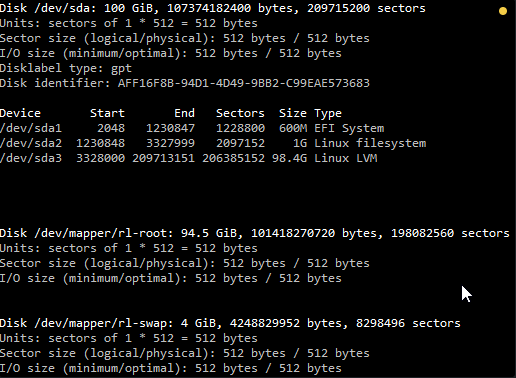
As you can see in the above image /dev/sda3 is listed as “Linux LVM” and it has the ID of 8e. The 8e hex code shows that it is a Linux LVM, while 83 shows a Linux native partition. Now that we have confirmed we are working with an LVM we can continue. For increasing the size of a Linux native partition (hex code 83).
Below is the disk information showing that our initial setup only has the one 95gb disk currently, which is under the logical volume named /dev/mapper/rl-root – this is what we will be expanding with the new disk.
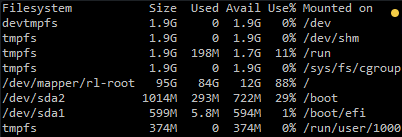
Note: that /dev/mapper/rl-root is the volume made up from /dev/sda3 currently – this is what we will be expanding.
Increasing the virtual hard disk
First off we increase the allocated disk space on the virtual machine itself. This is done by right clicking the virtual machine in vSphere, selecting edit settings, and then selecting the hard disk. In the below image I have changed the previously set hard disk of 100gb to 350gb while the virtual machine is up and running. Once complete click OK, this is all that needs to be done in VMware for this process.
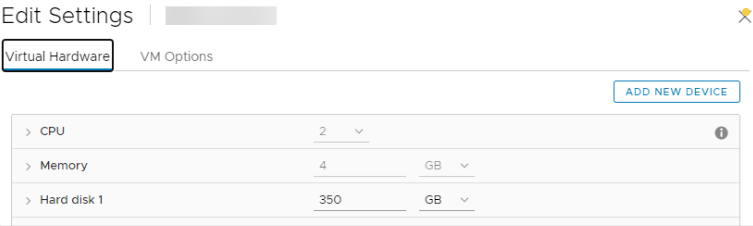
If you are not able to modify the size of the disk, the provisioned size setting is greyed out. This can happen if the virtual machine has a snapshot in place, these will need to be removed prior to making the changes to the disk. Alternatively you may need to shut down the virtual machine if it does not allow you to add or increase disks on the fly, if this is the case make the change then power it back on.
Detect the new disk space
Once the physical disk has been increased at the hardware level, we need to get into the operating system and create a new partition that makes use of this space to proceed.
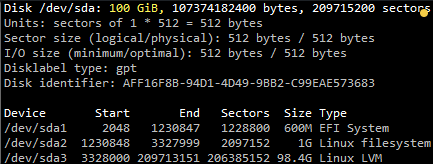
Before we can do this we need to check that the new unallocated disk space is detected by the server, you can use “fdisk -l” to list the primary disk. You will most likely see that the disk space is still showing as the same original size, at this point you can either reboot the server and it will detect the changes on boot or you can rescan your devices to avoid rebooting by running the below command. Note you may need to change host0 depending on your setup.
echo "- - -" > /sys/class/scsi_host/host0/scanBelow is an image after performing this and confirming that the new space is displaying.
Partition the new disk space
As outlined in my previous images the disk in my example that I am working with is /dev/sda, so we use fdisk to create a new primary partition to make use of the new expanded disk space. Note that we do not have 4 primary partitions already in place, making this method possible.
fdisk /dev/sdaWe are now using fdisk to create a new partition, the inputs I have entered in are shown below in bold. Note that you can press ‘m’ to get a full listing of the fdisk commands.
‘n’ was selected for adding a new partition.
Welcome to fdisk (util-linux 2.32.1).
Changes will remain in memory only, until you decide to write them.
Be careful before using the write command.

GPT PMBR size mismatch (209715199 != 734003199) will be corrected by write.
The backup GPT table is not on the end of the device. This problem will be corrected by write.

Command (m for help):
As I already have /dev/sda1, sda2 and sda3 as shown in previous images, I have gone with using ‘4’ for this new partition which will be created as /dev/sda4
Enter the “n” for new partition and enter for the rest of the defaults
Command (m for help): n
Partition number (4-128, default 4):
First sector (209713152-734003166, default 209713152):
Last sector, +sectors or +size{K,M,G,T,P} (209713152-734003166, default 734003166):

Created a new partition 4 of type 'Linux filesystem' and of size 250 GiB.

Command (m for help):
‘p’ to view the current changes in the session
Command (m for help): p
Disk /dev/sda: 350 GiB, 375809638400 bytes, 734003200 sectors
Units: sectors of 1 * 512 = 512 bytes
Sector size (logical/physical): 512 bytes / 512 bytes
I/O size (minimum/optimal): 512 bytes / 512 bytes
Disklabel type: gpt
Disk identifier: AFF16F8B-94D1-4D49-9BB2-C99EAE573683

Device         Start       End   Sectors  Size Type
/dev/sda1       2048   1230847   1228800  600M EFI System
/dev/sda2    1230848   3327999   2097152    1G Linux filesystem
/dev/sda3    3328000 209713151 206385152 98.4G Linux LVM
/dev/sda4  209713152 734003166 524290015  250G Linux filesystem

Command (m for help):
At this point if you do not see the correct added space on /dev/sda4 you will need to reboot the server.
As you can see the new partition of 150gb is a 8e meaning a Linux file system which is correct, older version we needed to change this.
‘w’ is used to write the table to disk and exit, basically all the changes that have been done will be saved and then you will be exited from fdisk.
Command (m for help): w
The partition table has been altered.
Syncing disks.
You will see a warning which basically means in order to use the new table with the changes a system reboot is required. If you can not see the new partition using “fdisk -l” you may be able to run “partprobe -s” to rescan the partitions. In my test I did not require either of those things at this stage (I do a reboot later on), straight after pressing ‘w’ in fdisk I was able to see the new /dev/sda3 partition of my 10gb of space as displayed in the below image.
That’s all for partitioning, we now have a new partition which is making use of the previously unallocated disk space from the increase in VMware.
Increasing the logical volume
We use the pvcreate command which creates a physical volume for later use by the logical volume manager (LVM). In this case the physical volume will be our new /dev/sda4 partition.
pvcreate /dev/sda4Physical volume "/dev/sda4" successfully created.
Next we need to confirm the name of the current volume group using the vgdisplay command. The name will vary depending on your setup, for me it is the name of my test server. vgdisplay provides lots of information on the volume group, I have only shown the name and the current size of it for this example.
vgdisplay| --- Volume group --- VG Name rl System ID Format lvm2 Metadata Areas 1 Metadata Sequence No 3 VG Access read/write VG Status resizable MAX LV 0 Cur LV 2 Open LV 2 Max PV 0 Cur PV 1 Act PV 1 VG Size 98.41 GiB PE Size 4.00 MiB Total PE 25193 Alloc PE / Size 25193 / 98.41 GiB Free PE / Size 0 / 0 VG UUID 16Qr51-iLg8-HDNB-MkUc-TB5c-dL9j-rnpHUE |
Now we extend the ‘rl’ volume group by adding in the physical volume of /dev/sda4 which we created using the pvcreate command earlier.
vgextend rl /dev/sda4Volume group "rl" successfully extended
Using the pvscan command we scan all disks for physical volumes, this should confirm the original /dev/sda5 partition and the newly created physical volume /dev/sda4
pvscan| PV /dev/sda3 VG rl lvm2 [98.41 GiB / 0 free] PV /dev/sda4 VG rl lvm2 [<250.00 GiB / <250.00 GiB free] Total: 2 [<348.41 GiB] / in use: 2 [<348.41 GiB] / in no VG: 0 [0 ] |
Next we need to increase the logical volume (rather than the physical volume) which basically means we will be taking our original logical volume and extending it over our new partition/physical volume of /dev/sda4.
Firstly confirm the path of the logical volume using lvdisplay. This path name will vary depending on your setup.
lvdisplay| --- Logical volume --- LV Path /dev/rl/root LV Name root VG Name rl LV UUID mb2gT4-2oqM-8icq-B8S6-A3lZ-9Ivi-scDZqS LV Write Access read/write LV Creation host, time mfb-us-lin-001, 2022-10-08 19:34:32 -0400 LV Status available # open 1 LV Size 94.45 GiB Current LE 24180 Segments 1 Allocation inherit Read ahead sectors auto - currently set to 8192 Block device 253:0 --- Logical volume --- LV Path /dev/rl/swap LV Name swap VG Name rl LV UUID NWNCL3-rzD7-av3v-lRP0-OQy9-4CcE-phna9T LV Write Access read/write LV Creation host, time mfb-us-lin-001, 2022-10-08 19:34:33 -0400 LV Status available # open 2 LV Size <3.96 GiB Current LE 1013 Segments 1 Allocation inherit Read ahead sectors auto - currently set to 8192 Block device 253:1 |
The logical volume is then extended using the lvextend command.
lvextend /dev/rl/root /dev/sda4| Size of logical volume rl/root changed from 94.45 GiB (24180 extents) to <344.45 GiB (88179 extents). Logical volume rl/root successfully resized |
There is then one final step which is to resize the file system so that it can take advantage of this additional space, this is done using the xfs_growfs command. Note that this may take some time to complete, it took about 30 seconds for my additional space.
xfs_growfs /dev/rl/root| meta-data=/dev/mapper/rl-root isize=512 agcount=4, agsize=6190080 blks = sectsz=512 attr=2, projid32bit=1 = crc=1 finobt=1, sparse=1, rmapbt=0 = reflink=1 bigtime=0 inobtcount=0 data = bsize=4096 blocks=24760320, imaxpct=25 = sunit=0 swidth=0 blks naming =version 2 bsize=4096 ascii-ci=0, ftype=1 log =internal log bsize=4096 blocks=12090, version=2 = sectsz=512 sunit=0 blks, lazy-count=1 realtime =none extsz=4096 blocks=0, rtextents=0 data blocks changed from 24760320 to 90295296 |
That’s it, now with the ‘df’ command we can see that the total available disk space has been increased.
df -h| Filesystem Size Used Avail Use% Mounted on devtmpfs 1.8G 0 1.8G 0% /dev tmpfs 1.8G 0 1.8G 0% /dev/shm tmpfs 1.8G 8.7M 1.8G 1% /run tmpfs 1.8G 0 1.8G 0% /sys/fs/cgroup /dev/mapper/rl-root 345G 85G 260G 25% / /dev/sda2 1014M 319M 696M 32% /boot /dev/sda1 599M 5.8M 594M 1% /boot/efi tmpfs 367M 0 367M 0% /run/user/0 |
260gb more drive space, aaaaaaah 🙂
Linux - Setting up an SSL secured Webserver with CentOS
This guide will explain how to set up a site over https. The tutorial uses a self signed key so will work well for a personal website or testing purposes. This is provided as is so proceed at your own risk and take backups!
1. Getting the required software
For an SSL encrypted web server you will need a few things. Depending on your install you may or may not have OpenSSL and mod_ssl, Apache's interface to OpenSSL. Use yum to get them if you need them.
yum install mod_ssl opensslYum will either tell you they are installed or will install them for you.
2. Generate a self-signed certificate
Using OpenSSL we will generate a self-signed certificate. If you are using this on a production server you are probably likely to want a key from a Trusted Certificate Authority, but if you are just using this on a personal site or for testing purposes a self-signed certificate is fine. To create the key you will need to be root so you can either su to root or use sudo in front of the commands
# Generate private key
openssl genrsa -out ca.key 2048

# Generate CSR
openssl req -new -key ca.key -out ca.csr

# Generate Self Signed Key
openssl x509 -req -days 365 -in ca.csr -signkey ca.key -out ca.crt

# Copy the files to the correct locations
cp ca.crt /etc/pki/tls/certs
cp ca.key /etc/pki/tls/private/ca.key
cp ca.csr /etc/pki/tls/private/ca.csr|
WARNING: Make sure that you copy the files and do not move them if you use SELinux. Apache will complain about missing certificate files otherwise, as it cannot read them because the certificate files do not have the right SELinux context. |
||
If you have moved the files and not copied them, you can use the following command to correct the SELinux contexts on those files, as the correct context definitions for /etc/pki/* come with the bundled SELinux policy.
restorecon -RvF /etc/pkiThen we need to update the Apache SSL configuration file
vi +/SSLCertificateFile /etc/httpd/conf.d/ssl.confChange the paths to match where the Key file is stored. If you've used the method above it will be
SSLCertificateFile /etc/pki/tls/certs/ca.crtThen set the correct path for the Certificate Key File a few lines below. If you've followed the instructions above it is:
SSLCertificateKeyFile /etc/pki/tls/private/ca.keyQuit and save the file and then restart Apache
/etc/init.d/httpd restartAll being well you should now be able to connect over https to your server and see a default Centos page. As the certificate is self signed browsers will generally ask you whether you want to accept the certificate.
3. Setting up the virtual hosts
Just as you set VirtualHosts for http on port 80 so you do for https on port 443. A typical VirtualHost for a site on port 80 looks like this
<VirtualHost *:80>
        <Directory /var/www/vhosts/yoursite.com/httpdocs>
        AllowOverride All
        </Directory>
        DocumentRoot /var/www/vhosts/yoursite.com/httpdocs
        ServerName yoursite.com
</VirtualHost>
To add a sister site on port 443 you need to add the following at the top of your file
NameVirtualHost *:443and then a VirtualHost record something like this:
<VirtualHost *:443>
        SSLEngine on
        SSLCertificateFile /etc/pki/tls/certs/ca.crt
        SSLCertificateKeyFile /etc/pki/tls/private/ca.key
        <Directory /var/www/vhosts/yoursite.com/httpsdocs>
        AllowOverride All
        </Directory>
        DocumentRoot /var/www/vhosts/yoursite.com/httpsdocs
        ServerName yoursite.com
</VirtualHost>
Restart Apache again using
/etc/init.d/httpd restart
4. Configuring the firewall
You should now have a site working over https using a self-signed certificate. If you can't connect you may need to open the port on your firewall. To do this amend your iptables rules:
iptables -A INPUT -p tcp --dport 443 -j ACCEPT
/sbin/service iptables save
iptables -L -v
Linux - Samba Setup Rocky 9
Step 1: Install Samba on Linux
To get started out with Samba, install the Samba core packages including the client package:
dnf install -y samba samba-common samba-client Install-Samba in Linux
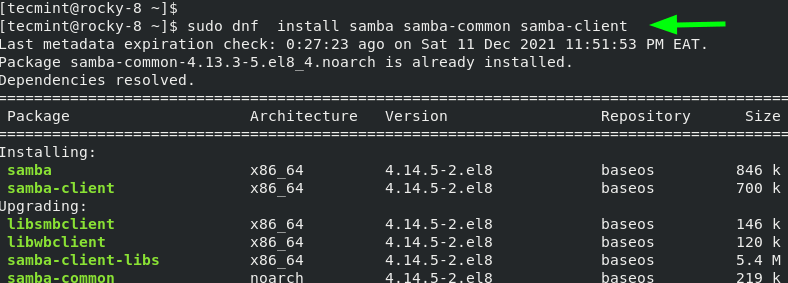
The command installs the packages specified along with the dependencies as displayed on the output. After the installation is complete, you will get a summary of all the packages that have been installed.
Samba Installation Completes

Step 2: Create and Configure Samba Shares
Once all the samba packages have been installed, the next step is to configure the samba shares. A samba share is simply a directory that is going to be shared across client systems in the network.
Here, we are going to create a samba share called /data in the /srv/tecmint/ directory path.
mkdir -p /srv/tecmint/dataNext, we will assign permissions and ownership as follows.
chmod -R 755 /srv/tecmint/data
chown -R  nobody:nobody /srv/tecmint/data
chcon -t samba_share_t /srv/tecmint/data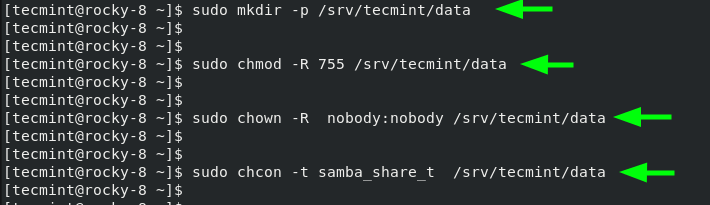
Next, we are going to make some configurations in the smb.conf configuration file which is Samba’s main configuration file. But before we do so, we will back up the file by renaming it with a different file extension.
mv /etc/samba/smb.conf /etc/samba/smb.conf.bakNext, we are going to create a new configuration file.
vim /etc/samba/smb.confWe will define policies on who can access the samba share by adding the lines shown in the configuration file.
[global]
workgroup = WORKGROUP
server string = Samba Server %v
netbios name = rocky-8
security = user
map to guest = bad user
dns proxy = no
ntlm auth = true


[Public]
path =  /srv/tecmint/data
browsable =yes
writable = yes
guest ok = yes
read only = no
Save and exit the configuration file.
To verify the configurations made, run the command:
testparmVerify Samba Configuration
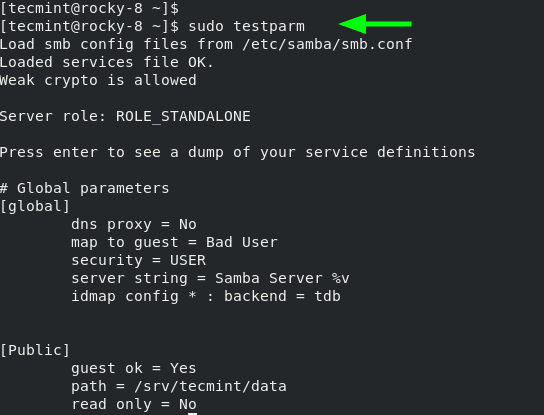
Next, start and enable Samba daemons as shown.
systemctl enable --now smb;systemctl enable --now nmbBe sure to confirm that both the smb and nmb daemons are running.
systemctl status smb;systemctl status nmbVerify Samba Status
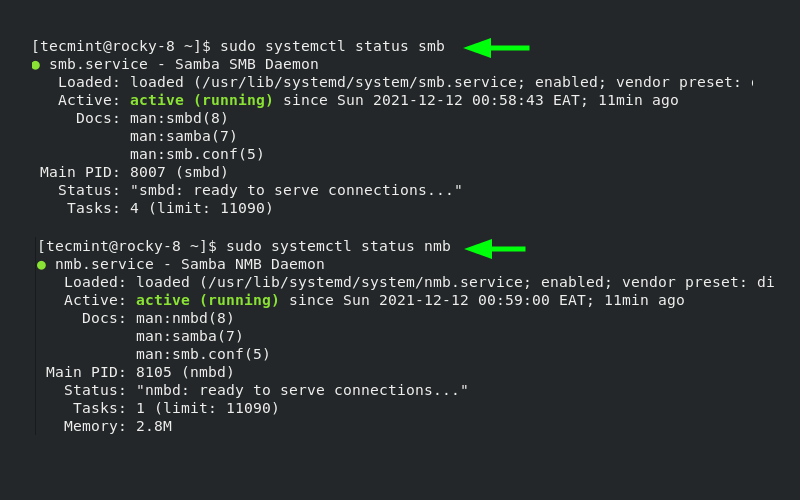
To enable access to samba share from remote Windows systems, you need to open the samba protocol on the firewall.
firewall-cmd --permanent --add-service=samba
firewall-cmd --reload
firewall-cmd --list-services
Step 3: Accessing Samba Share from Windows
Thus far, we have installed samba and configured our samba share. We are now ready to access it remotely. To do this on a Windows client, press the Windows logo key + R to launch the Run dialog.
In the textfield provided, enter the samba server’s IP address as shown:
\\server-ip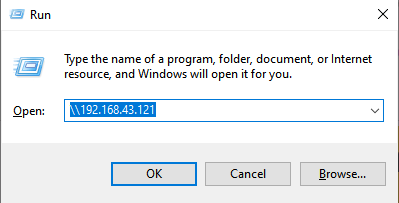
The following window labeled ‘Public’ will pop up. Remember, this is the directory that points to our samba share in the /srv/tecmint/data directory.
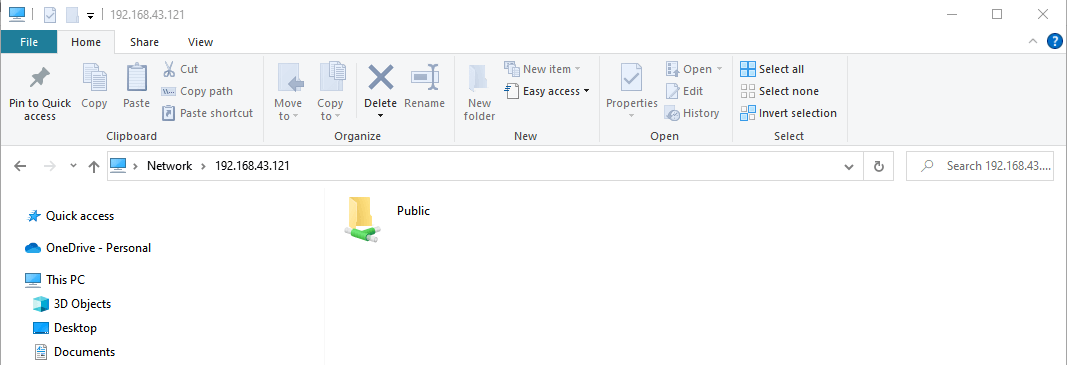
Currently, our directory is empty as we have not created any files. So, we will head back to our terminal and create a few files in the samba share directory.
cd /srv/tecmint/data
touch file{1..3}.txt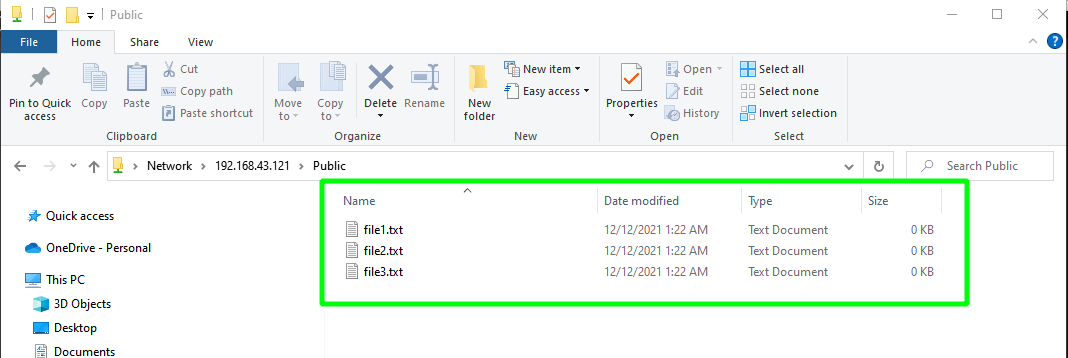
Perfect. We have successfully managed to access our samba share. However, our directory is accessible to anyone and everybody can edit and delete files at will, which is not recommended especially if you plan to host sensitive files.
In the next step, we will demonstrate how you can create and configure a secure samba share directory.
Step 4: Secure Samba Share Directory
First, we will create a new samba user.
useradd smbuserNext, we will configure a password for the samba user. This is the password that will be used during authentication.
smbpasswd -a smbuserCreate Samba User
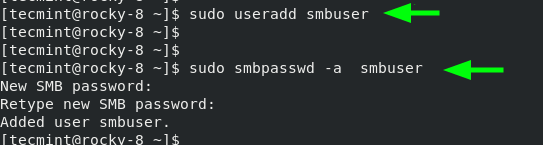
Next, we will create a new group for our secure samba share and add the new samba user.
groupadd smb_group
usermod -g smb_group smbuser
Thereafter, create yet another samba share which will be securely accessed. In our case, we have created another directory in the same path as the
mkdir -p /srv/tecmint/privateThen configure the file permissions for the samba share
chmod -R 770 /srv/tecmint/private
chcon -t samba_share_t /srv/tecmint/private
chown -R root:smb_group /srv/tecmint/private
Once again, access the Samba configuration file.
$ sudo vim /etc/samba/smb.conf
Add these lines to define to secure samba share.
[Private]
path = /srv/tecmint/private
valid users = @smb_group
guest ok = no
writable = no
browsable = yes
Save the changes and exit.
Finally, restart all the samba daemons as shown.
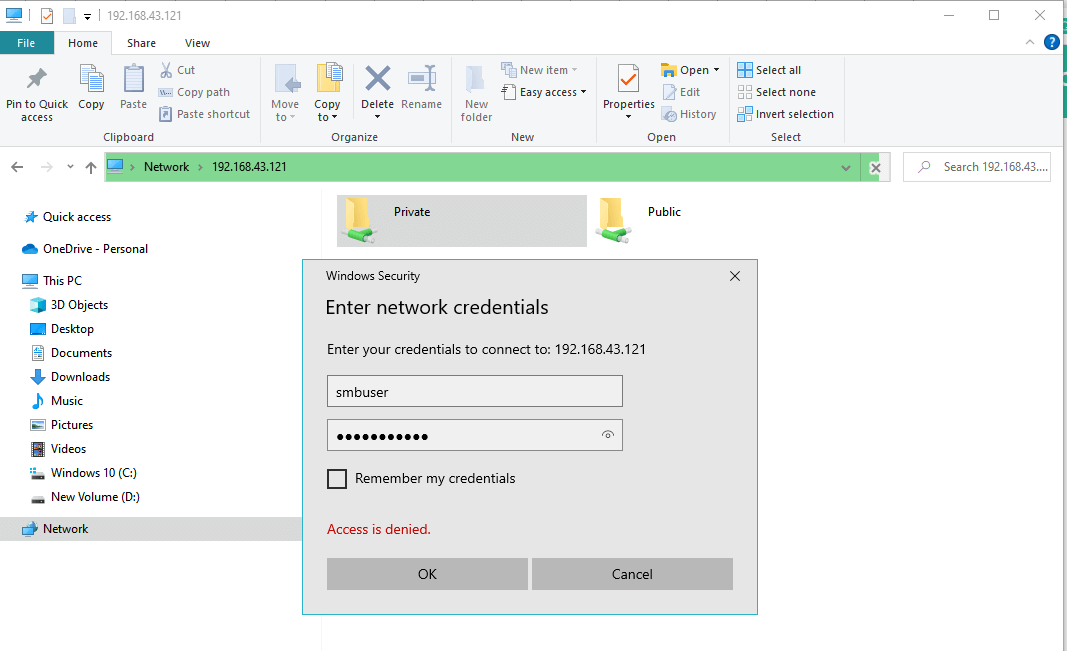
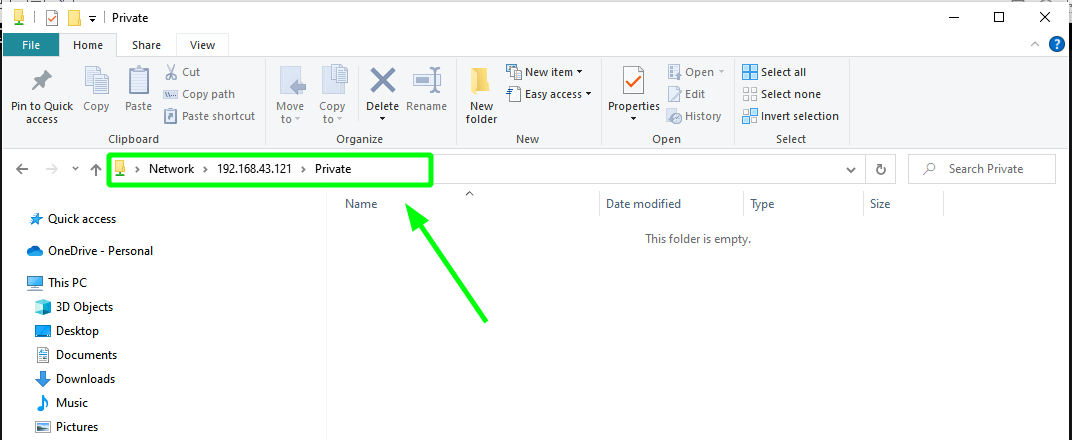
systemctl restart smb;systemctl restart nmbWhen you access your server this time around, you will notice an additional ‘Private‘ folder. To access the folder, you will be required to authenticate with the Samba user’s credentials. Provide the username and password of the user you created in the previous step and click ‘OK’.
Samba User Authentication
Step 5: Accessing Samba Share from Linux Client
$ dnf install -y samba-clientThen use the smbclient command as follows
smbclient ‘\2.168.43.121\private’ -U smbuser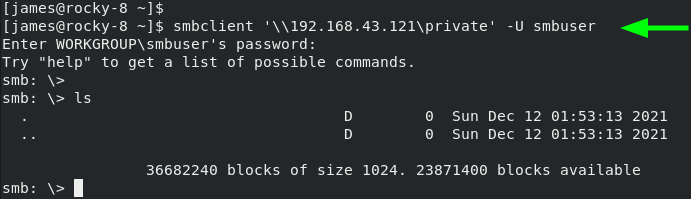
And this concludes this guide on setting up Samba on RHEL, CentOS Stream, Rocky Linux, and AlmaLinux. Your feedback on this guide will be highly appreciated.
Some taken from https://www.tecmint.com/install-samba-rhel-rocky-linux-and-almalinux/
Linux - Samba Setup No Authentication
Step 1: Install Samba on Linux
To get started out with Samba, install the Samba core packages including the client package:
dnf install -y samba samba-common samba-client The command installs the packages specified along with the dependencies as displayed on the output. After the installation is complete, you will get a summary of all the packages that have been installed.
Samba Installation Completes
Step 2: Create and Configure Samba Shares
Once all the samba packages have been installed, the next step is to configure the samba shares. A samba share is simply a directory that is going to be shared across client systems in the network.
Next, we are going to make some configurations in the smb.conf configuration file which is Samba’s main configuration file. But before we do so, we will back up the file by renaming it with a different file extension.
mv /etc/samba/smb.conf /etc/samba/smb.conf.bakNext, we are going to create a new configuration file.
vim /etc/samba/smb.confThis will define the samba share by adding the lines shown in the configuration file.
[global]
unix charset = UTF-8
hosts allow = 192.168.253.
map to guest = Bad User
log file = /var/log/samba/log.%m
log level = 1
server role = standalone server

[httpd]
path =  /etc/httpd/
read only = no
guest ok = yes
guest only = yes
force user = apache
force group = apache

[html]
path =  /var/www/html/
read only = no
guest ok = yes
guest only = yes
force user = apache
force group = apache

[top]
path =  /
read only = no
guest ok = yes
guest only = yes
force user = root
force group = root
Save and exit the configuration file.
To verify the configurations made, run the command:
testparmThis verifies Samba Configuration
Next, start and enable Samba daemons as shown.
systemctl enable --now smb;systemctl enable --now nmbBe sure to confirm that both the smb and nmb daemons are running.
systemctl status smb;systemctl status nmbThis verified Samba Status
Step 3: Accessing Samba Share from Windows
Thus far, we have installed samba and configured our samba share. We are now ready to access it remotely. To do this on a Windows client, press the Windows logo key + R to launch the Run dialog.
In the textfield provided, enter the samba server’s IP address as shown:
\\server-ipSome data from here
https://wiki.samba.org/index.php/Setting_up_Samba_as_a_Standalone_Server
Linux - Setup Rocky 9 SMTP Server
System Configuration
Upgrade Current System
dnf install epel-release -y
dnf upgrade -y
Configure SELinux
setenforce 0
sed -i 's/^SELINUX=.*/SELINUX=disabled/g' /etc/selinux/config
Disable Firewall
systemctl disable firewalld.serviceInstall Core Tools
dnf install bind-utils bzip2 cups cifs-utils enscript ftp gdb ghostscript java-1.8.0-openjdk-headless java-11-openjdk-headless krb5-workstation ksh lftp lrzsz lsof libnsl lzop mariadb-server mlocate mutt ncompress net-tools net-snmp net-snmp-utils net-tools nfs-utils nmap nvme-cli openldap-clients openssh-clients psmisc realmd rsync samba-client strace sysstat tcpdump telnet telnet-server tmux unix2dos vim vim-enhanced vsftpd wget xfsdump vsftpd htop mc rsyslog rsyslog-doc postfix dbus-daemon s-nail dovecot cyrus-sasl cyrus-sasl-lib cyrus-sasl-plain -yConfigure Virtual Tool
dnf install open-vm-tools -y
sysctl vm.swappiness=10
Time Sync
systemctl enable --now chronydConfigure Postfix
Postfix Settings
We now have to configure Postfix. One thing to keep in mind is that we're configuring Postfix to only send email, not receive it (as that is a far more complicated topic that requires considerable setup time and understanding to prevent the server from becoming an open relay, which could lead to a serious spam issue). Because of this, we can skip setting up Postfix to listen and instead go right to the hostname.
The Postfix hostname must be set to match the system hostname. We'll use the mail.example.com address (so make sure to change this to match your hostname). Set that hostname with the command:
sudo postconf -e "myhostname = mail.yourdomain.com"Make sure to check that the apex domain (aka root domain) is correct with the command:
postconf mydomainThe apex domain for our example should be listed as http://example.com . If not, set it with:
sudo postconf -e "mydomain = example.com"Set the myorigin parameter with:
sudo postconf -e "myorigin = $mydomain"Set to allow all IP to access the server with:
sudo postconf -e "inet_interfaces = all"Set to only allow IPv4 to use this server with:
sudo postconf -e "inet_protocols = ipv4"Set the mydestination parameter with:
sudo postconf -e "mydestination = $myhostname, localhost.$mydomain, localhost, $mydomain"Set the allowed IP address to relay on this server with:
sudo postconf -e "mynetworks = 127.0.0.0/8, 10.0.0.0/24, 192.168.0.0/16"Set the mail folder with:
sudo postconf -e "home_mailbox = Maildir/"sudo postconf -e "smtpd_banner = $myhostname ESMTP"Set to disable verify with:
sudo postconf -e "disable_vrfy_command = yes"Set to require the HELO for senders with:
sudo postconf -e "smtpd_helo_required = yes"Set the message limit for example 10MB with:
sudo postconf -e "message_size_limit = 10240000"Set SMTP Authentication with:
sudo postconf -e "smtpd_sasl_type = dovecot"
sudo postconf -e "smtpd_sasl_path = private/auth"
sudo postconf -e "smtpd_sasl_auth_enable = yes"
sudo postconf -e "smtpd_sasl_security_options = noanonymous"
sudo postconf -e "smtpd_sasl_local_domain = $myhostname"
sudo postconf -e "smtpd_recipient_restrictions = permit_mynetworks, permit_auth_destination, permit_sasl_authenticated, reject"
With these taken care of, restart Postfix with:
sudo systemctl restart postfixExtra Authentications
Configure additional settings for Postfix if you need.
It's possible to reject many spam emails with the settings below.
However, you should consider to apply the settings, because sometimes normal emails are also rejected with them. Especially, there are SMTP servers that forward lookup and reverse lookup of their hostnames on DNS do not match even if they are not spammers.
sudo postconf -e "smtpd_client_restrictions = permit_mynetworks, reject_unknown_client_hostname, permit"
sudo postconf -e "smtpd_sender_restrictions = permit_mynetworks, reject_unknown_sender_domain,reject_non_fqdn_sender"
sudo postconf -e "smtpd_helo_restrictions = permit_mynetworks, reject_unknown_hostname,reject_non_fqdn_hostname, reject_invalid_hostname, permit"
Enable Postfix
sudo systemctl enable --now postfixConfigure Dovecot
Dovecot Settings
This example shows to configure to provide SASL function to Postfix.
vi /etc/dovecot/dovecot.conf and uncomment and if not use IPv6, remove [::]
listen = *, ::vi /etc/dovecot/conf.d/10-auth.conf and uncomment and change for the case you allow plain text auth
disable_plaintext_auth = noand then add login to
auth_mechanisms = plain loginvi /etc/dovecot/conf.d/10-mail.conf and uncomment and add
mail_location = maildir:~/Maildirvi /etc/dovecot/conf.d/10-master.conf and uncomment and add like follows Postfix smtp-auth
  unix_listener /var/spool/postfix/private/auth {
    mode = 0666
    user = postfix
    group = postfix
  }
vi /etc/dovecot/conf.d/10-ssl.conf and change to use SSL if available but not require SSL
ssl = yesEnable Dovecot
sudo systemctl enable --now dovecotTest the setup
Now that everything is set up, test Postfix by sending an email from the command line like so:
echo "Rocky Linux Rocks" | sendmail EMAILWhere EMAIL is a valid email address.
If you receive the email, congratulate yourself on a job well done. If the email fails to arrive, you might need to verify if your DNS records are correct and the changes have taken effect (they can take up to 24 hours). You can also check the maillog with a command like:
tail -f /var/log/maillogWith the tail running, open another terminal window and attempt to send another email to see what kind of logs are written. From that information, you can start troubleshooting any issues that are causing problems.
Used ref from
https://www.server-world.info/en/note?os=Rocky_Linux_8&p=mail&f=1
https://www.server-world.info/en/note?os=Rocky_Linux_8&p=mail&f=2
Linux - Setup RedHat 10 SMTP Server
System Configuration
Upgrade Current System
subscription-manager repos --enable codeready-builder-for-rhel-10-$(arch)-rpms
dnf install https://dl.fedoraproject.org/pub/epel/epel-release-latest-10.noarch.rpm -y
dnf upgrade -y
Configure SELinux
setenforce 0
sed -i 's/^SELINUX=.*/SELINUX=disabled/g' /etc/selinux/config
Disable Firewall
systemctl disable firewalld.serviceInstall Core Tools
dnf install bind-utils bzip2 cups cifs-utils enscript ftp gdb ghostscript krb5-workstation ksh lftp lrzsz lsof libnsl lzop mariadb-server plocate mutt ncompress net-tools net-snmp net-snmp-utils net-tools nfs-utils nmap nvme-cli openldap-clients openssh-clients psmisc realmd rsync samba-client strace sysstat tcpdump telnet telnet-server tmux unix2dos vim vim-enhanced vsftpd wget xfsdump vsftpd htop mc rsyslog rsyslog-doc postfix dbus-daemon s-nail dovecot cyrus-sasl cyrus-sasl-lib cyrus-sasl-plain tree -yExtras not included in EPEL to get the java version for Kiwi
cat <<EOF > /etc/yum.repos.d/adoptium.repo
[Adoptium]
name=Adoptium
baseurl=https://packages.adoptium.net/artifactory/rpm/${DISTRIBUTION_NAME:-$(. /etc/os-release; echo $ID)}/\$releasever/\$basearch
enabled=1
gpgcheck=1
gpgkey=https://packages.adoptium.net/artifactory/api/gpg/key/public
EOF
Run to install java 11
dnf install temurin-11-jdkConfigure Virtual Tool
dnf install open-vm-tools -y
sysctl vm.swappiness=10
Install vim color for scripting
dnf install git -y
git clone https://github.com/flazz/vim-colorschemes ~/.vim/
cp ~/.vim/colors/desert.vim /etc/vimrc.local
Time Sync
Enable Time Synchronization run the the following and add your domain time server
vi /etc/chrony.confAdd your server below the following and make sure you change the domain name from sflservicesllc.com
server domain.sflserviesllc.com iburstShould look like this now after the change
|
#server _gateway iburst # Use public servers from the pool.ntp.org project. |
Enable Time Synchronization
systemctl enable --now chronydNote: Time-zone changes are made with the command
timedatectlConfigure Postfix
Postfix Settings
We now have to configure Postfix. One thing to keep in mind is that we're configuring Postfix to only send email, not receive it (as that is a far more complicated topic that requires considerable setup time and understanding to prevent the server from becoming an open relay, which could lead to a serious spam issue). Because of this, we can skip setting up Postfix to listen and instead go right to the hostname.
New for version 10 as for hashing:
cd /etc/postfix
cp /etc/postfix/main.cf /etc/postfix/main.cf.org
sed -i 's/hash:/lmdb:/g' /etc/postfix/main.cf
echo "default_database_type = lmdb" | sudo tee -a /etc/postfix/main.cf
rm /etc/postfix/*.db
postalias lmdb:/etc/aliases
postmap lmdb:/etc/postfix/transport
postmap lmdb:/etc/postfix/virtual
postmap lmdb:/etc/postfix/access
postmap lmdb:/etc/postfix/sasl_passwd
postmap lmdb:/etc/postfix/sender_relay
systemctl restart postfix
tail -f /var/log/maillog
The Postfix hostname must be set to match the system hostname. We'll use the mail.example.com address (so make sure to change this to match your hostname). Set that hostname with the command:
sudo postconf -e "myhostname = mail.yourdomain.com"Make sure to check that the apex domain (aka root domain) is correct with the command:
postconf mydomainThe apex domain for our example should be listed as http://example.com . If not, set it with:
sudo postconf -e "mydomain = example.com"Set the myorigin parameter with:
sudo sed -i 's/^#myorigin = $mydomain.*/myorigin = $mydomain/' /etc/postfix/main.cfSet to allow all IP to access the server with:
sudo postconf -e "inet_interfaces = all"Set to only allow IPv4 to use this server with:
sudo postconf -e "inet_protocols = ipv4"Set the mydestination parameter with:
sudo postconf -e "mydestination = $myhostname, localhost.$mydomain, localhost, $mydomain"Set the allowed IP address to relay on this server with:
sudo postconf -e "mynetworks = 127.0.0.0/8, 10.0.0.0/24, 192.168.0.0/16"Set the mail folder with:
sudo postconf -e "home_mailbox = Maildir/"sudo postconf -e "smtpd_banner = $myhostname ESMTP"Set to disable verify with:
sudo postconf -e "disable_vrfy_command = yes"Set to require the HELO for senders with:
sudo postconf -e "smtpd_helo_required = yes"Set the message limit for example 10MB with:
sudo postconf -e "message_size_limit = 10240000"Set SMTP Authentication with:
sudo postconf -e "smtpd_sasl_type = dovecot"
sudo postconf -e "smtpd_sasl_path = private/auth"
sudo postconf -e "smtpd_sasl_auth_enable = yes"
sudo postconf -e "smtpd_sasl_security_options = noanonymous"
sudo postconf -e "smtpd_sasl_local_domain = $myhostname"
sudo postconf -e "smtpd_recipient_restrictions = permit_mynetworks, permit_auth_destination, permit_sasl_authenticated, reject"
With these taken care of, restart Postfix with:
sudo systemctl restart postfixExtra Authentications
Configure additional settings for Postfix if you need.
It's possible to reject many spam emails with the settings below.
However, you should consider to apply the settings, because sometimes normal emails are also rejected with them. Especially, there are SMTP servers that forward lookup and reverse lookup of their hostnames on DNS do not match even if they are not spammers.
sudo postconf -e "smtpd_client_restrictions = permit_mynetworks, reject_unknown_client_hostname, permit"
sudo postconf -e "smtpd_sender_restrictions = permit_mynetworks, reject_unknown_sender_domain,reject_non_fqdn_sender"
sudo postconf -e "smtpd_helo_restrictions = permit_mynetworks, reject_unknown_hostname,reject_non_fqdn_hostname, reject_invalid_hostname, permit"
Enable Postfix
sudo systemctl enable --now postfixDovecot
Dovecot Settings
This example shows to configure to provide SASL function to Postfix.
vi /etc/dovecot/dovecot.conf and uncomment and if not use IPv6, remove [::]
listen = *, ::vi /etc/dovecot/conf.d/10-auth.conf and uncomment and change for the case you allow plain text auth
disable_plaintext_auth = noand then add login to
auth_mechanisms = plain loginvi /etc/dovecot/conf.d/10-mail.conf and uncomment and add
mail_location = maildir:~/Maildirvi /etc/dovecot/conf.d/10-master.conf and uncomment and add like follows Postfix smtp-auth
  unix_listener /var/spool/postfix/private/auth {
    mode = 0666
    user = postfix
    group = postfix
  }
vi /etc/dovecot/conf.d/10-ssl.conf and change to use SSL if available but not require SSL
ssl = yesEnable Dovecot
sudo systemctl enable --now dovecotMailJet (replace defaults)
Add/replace the end to the following:
# Use TLS if this is supported by the remote SMTP server, otherwise use
# plaintext (opportunistic TLS outbound).
#
smtp_tls_security_level = may
default_database_type = lmdb
shlib_directory = /usr/lib64/postfix
meta_directory = /etc/postfix
#Mailjet
smtp_sender_dependent_authentication = yes
sender_dependent_relayhost_maps = hash:/etc/postfix/sender_relay
smtp_sasl_auth_enable = yes
smtp_sasl_security_options = noanonymous
smtp_sasl_password_maps = hash:/etc/postfix/sasl_passwd
mydomain = onling.com
mynetworks = 127.0.0.0/8, 192.168.0.0/16
myorigin = $mydomain
home_mailbox = Maildir/
smtpd_banner = ESMTP
Add the relay servers
sudo cat > /etc/postfix/sender_relay << EOF
@sflservicesllc.com in.mailjet.com
EOF
Add the relay passwords
cat > /etc/postfix/sasl_passwd << EOF
@sflservicesllc.com [hashkey]
EOF
Permissions
chmod 600 /etc/postfix/sasl_passwd
chown root:root /etc/postfix/sasl_passwd
postmap lmdb:/etc/postfix/sasl_passwd
postmap lmdb:/etc/postfix/sender_relay
Disable Devcot and restart Postfix:
systemctl stop devcot
systemctl disable devcot
sudo systemctl restart postfix
Test the setup
Now that everything is set up, test Postfix by sending an email from the command line like so:
echo "Install of Linux Rocks $HOSTNAME" | sendmail steve.ling@sflservicesllc.comWhere EMAIL is a valid email address.
If you receive the email, congratulate yourself on a job well done. If the email fails to arrive, you might need to verify if your DNS records are correct and the changes have taken effect (they can take up to 24 hours). You can also check the maillog with a command like:
tail -f /var/log/maillogWith the tail running, open another terminal window and attempt to send another email to see what kind of logs are written. From that information, you can start troubleshooting any issues that are causing problems.
Used ref from
https://www.server-world.info/en/note?os=Rocky_Linux_8&p=mail&f=1
https://www.server-world.info/en/note?os=Rocky_Linux_8&p=mail&f=2
Linux - RHeL Subscription
We encountered the error message ‘This system is not registered with an entitlement server, You can use “rhc” or “subscription-manager” to register’. On CentOS Stream 9 Linux system while trying to perform package installations. For RHEL, this usually is an indication that your system is not registered with Red Hat’s subscription management service.
$ sudo dnf clean all
Updating Subscription Management repositories.
Unable to read consumer identity

This system is not registered with an entitlement server. You can use "rhc" or "subscription-manager" to register.

21 files removed
Here is how we solved the issue on the system. Open the following file for editing:
sudo vi /etc/dnf/plugins/subscription-manager.confChange from enabled=1 to enabled=0:
[main]
enabled=0

# When following option is set to 1, then all repositories defined outside redhat.repo will be disabled
# every time subscription-manager plugin is triggered by dnf or yum
disable_system_repos=0
You can then update package cache and try install your packages.
For RHEL system, run the following command to register your system with the Red Hat Subscription Manager:
sudo subscription-manager register --username <your_username> --password <your_password>Remember to replace use correct username and password for your Red Hat account. After successful registration, attach a subscription to the system:
sudo subscription-manager attach --autoCheck if subscription was successful and list of repositories the system has access to:
sudo subscription-manager statusTo enable a specific repository, run:
sudo subscription-manager repos --enable=<repository_name>Listing of available repositories can be done using:
sudo subscription-manager repos --listEnjoy using your CentOS Stream or Red Hat Enterprise Linux system!.
RedHat - Install a Kubernetes Cluster on RHEL 9.x | Rocky 9.x: A Step-by-Step Guide
https://infotechys.com/install-a-kubernetes-cluster-on-rhel-9
https://www.youtube.com/watch?v=_ELvCuXO6y4
https://medium.com/weeklycloud/kubernetes-installation-on-rhel-9-d5629f2fa4f9
https://www.youtube.com/watch?v=vX2n05t0AQg&t=1782s
Prerequisites
Update the System
You can choose to disable or adjust selinux and the firewall setting.
Start disabling the firewall and selinux
Disable selinux
setenforce 0
sed -i 's/^SELINUX=.*/SELINUX=disabled/g' /etc/selinux/config
Disable firewall
systemctl disable firewalld.serviceEnd disabling the firewall and selinux
Start adjusting the firewall and selinux
Adjust selinux
setenforce 0
sed -i --follow-symlinks 's/SELINUX=enforcing/SELINUX=permissive/g' /etc/sysconfig/selinux
For Kubernetes components to communicate effectively across nodes, certain ports must be opened in the firewall. These ports enable essential Kubernetes communication and control functions:
- 6443/tcp: Kubernetes API server
- 2379–2380/tcp: etcd server (used for storing cluster data)
- 10250–10252/tcp: kubelet API and control plane services
- 10257–10259/tcp: Scheduler and controller manager
- 179/tcp: BGP (for networking plugins, if used)
- 4789/udp: VXLAN (for pod networking, if using overlay networks)
Commands to Open Ports on the Control Plane Node
firewall-cmd --permanent --add-port={6443,2379,2380,10250,10251,10252,10257,10259,179}/tcp
firewall-cmd --permanent --add-port=4789/udp
firewall-cmd --reload
These ports facilitate node-to-node communication and pod access:
- 10250/tcp: kubelet API on worker nodes
- 30000–32767/tcp: NodePort range for services exposed to external access
- 179/tcp: BGP (if using)
- 4789/udp: VXLAN (for overlay network communication)
Commands to Open Ports on Worker Nodes
firewall-cmd --permanent --add-port={179,10250,30000-32767}/tcp
firewall-cmd --permanent --add-port=4789/udp
firewall-cmd --reload
End adjusting the firewall and selinux
Epel Release
subscription-manager repos --enable codeready-builder-for-rhel-9-$(arch)-rpms
dnf install https://dl.fedoraproject.org/pub/epel/epel-release-latest-9.noarch.rpm
After Epel installation rerun the upgrade to update if any are needed
dnf upgrade -yIf you are running on a virtual machine run the following
dnf install open-vm-tools -y
sysctl vm.swappiness=10
Install vim color for scripting
dnf install git -y
git clone https://github.com/flazz/vim-colorschemes ~/.vim/
cp ~/.vim/colors/desert.vim /etc/vimrc.local
Step 1: Install Kernel Headers
First, ensure that you have the appropriate kernel headers installed on your system (on each node). You can install them using the following command:
dnf -y install kernel-devel-$(uname -r)Step 2: Add Kernel Modules
To load the necessary kernel modules required by Kubernetes, you can use the modprobe command followed by the module names (on each node). Here’s how you can do it:
modprobe br_netfilter
modprobe overlay
These commands load the required kernel modules (br_netfilter, overlay) that are essential for Kubernetes to function properly and facilitate communication within the Kubernetes cluster.
By loading these modules, you ensure that your servers are prepared for Kubernetes installation and can effectively manage networking and load balancing tasks within the cluster.
Next, create a configuration file (as the root user on each node) to ensure these modules load at system boot:
cat > /etc/modules-load.d/k8s.conf << EOF
br_netfilter
overlay
EOF
Step 3: Configure Sysctl
To set specific sysctl settings (on each node) that Kubernetes relies on, you can update the system’s kernel parameters. These settings ensure optimal performance and compatibility for Kubernetes. Here’s how you can configure the necessary sysctl settings:
cat > /etc/sysctl.d/k8s.conf << EOF
net.ipv4.ip_forward = 1
net.bridge.bridge-nf-call-ip6tables = 1
net.bridge.bridge-nf-call-iptables = 1
EOF
These commands adjust the following kernel parameters:
By setting these sysctl parameters, you ensure that your system is properly configured to support Kubernetes networking requirements and forwarding of network traffic within the cluster. These settings are essential for the smooth operation of Kubernetes networking components. Run the following command to apply the changes:
sysctl --systemStep 4: Disabling Swap
To disable swap on each server in your Kubernetes cluster, you can follow these steps:
swapoff -aThis command turns off all swap devices.
sed -e '/swap/s/^/#/g' -i /etc/fstabUsing the sed command (above), you can locate the line that contains the swap entry comment it out by adding a # at the beginning of the line.
#/dev/mapper/vg00-swap none swap defaults 0 0Step 5: Install Containerd
In this step, we’ll install Containerd on each node. Containerd serves as a crucial container runtime responsible for managing and executing containers, which serve as the fundamental units of Kubernetes applications. Containerd provides the necessary infrastructure for container orchestration, ensuring efficient deployment and management of containerized workloads within the Kubernetes ecosystem.
Add the Docker CE Repository
Before proceeding with the installation of Containerd, we first need to add the Docker Community Edition (CE) repository to our system. Docker CE is the free version of Docker, offering essential components for container management. Adding this repository ensures we have access to the latest Docker CE packages for installation.
dnf config-manager --add-repo https://download.docker.com/linux/rhel/docker-ce.repoUpdate Package Cache
After adding the repository, it’s essential to update the package cache to ensure the latest package information is available:
dnf makecacheNow, install the containerd.io package:
dnf -y install containerd.ioConfigure Containerd
After installing Containerd, the next step is to configure it to ensure optimal performance and compatibility with your environment. The configuration file for Containerd is located at /etc/containerd/config.toml. While the default configuration provides a solid starting point for most environments, we’ll make a small adjustment to enable Systemd Cgroup support, which is essential for proper container management. Let’s proceed with configuring Containerd:
cat /etc/containerd/config.tomlRun the following command to build out the containerd configuration file:
sh -c "containerd config default > /etc/containerd/config.toml" ; cat /etc/containerd/config.toml > /dev/null 2>&1Using your preferred text editor, open the /etc/containerd/config.toml file and set the SystemdCgroup variable to true (SystemdCgroup = true):
sed -i 's/SystemdCgroup \= false/SystemdCgroup \= true/g' /etc/containerd/config.tomlThis configuration change enables SystemdCgroup support in Containerd, ensuring compatibility with Systemd-managed containers. Once you’ve made these adjustments, Containerd will be configured with SystemdCgroup support, providing enhanced compatibility for managing containers within a Systemd environment.
Save and exit the file. Then, run the following command to start and enable containerd.service upon reboot.
systemctl enable containerd.service
systemctl restart containerd.service
Reboot your machine.
systemctl rebootThen, run this command to verify the status of the containerd.service. It should be up and running:
systemctl status containerd.serviceStep 7: Install Kubernetes Components
To install Kubernetes components (kubelet, kubeadm, and kubectl) and add the Kubernetes repository to your package manager, you can follow these steps:
Add Kubernetes Repository
First, add the Kubernetes repository (as the root user) to your package manager. For example, on RHEL/CentOS version 8+, you can use the following command:
cat <<EOF | sudo tee /etc/yum.repos.d/kubernetes.repo
[kubernetes]
name=Kubernetes
baseurl=https://pkgs.k8s.io/core:/stable:/v1.33/rpm/
enabled=1
gpgcheck=1
gpgkey=https://pkgs.k8s.io/core:/stable:/v1.33/rpm/repodata/repomd.xml.key
exclude=kubelet kubeadm kubectl cri-tools kubernetes-cni
EOF
Install Kubernetes Packages
Once the repository is added, you can proceed to install the Kubernetes components (kubelet, kubeadm, and kubectl) using the package manager. Run the following command:
dnf makecache; dnf install -y kubelet kubeadm kubectl --disableexcludes=kubernetesThe --disableexcludes=kubernetes flag ensures that packages from the Kubernetes repository are not excluded during installation.
Start and Enable kubelet Service
After installing kubelet, start and enable the kubelet service to ensure it starts automatically upon system boot:
systemctl enable kubelet.service
systemctl restart kubelet.service
To verify the installation thus far use the following:
kubeadm version
kubelet --version
kubectl version --client
Don’t worry about any kubelet errors at this point. Once the worker nodes are successfully joined to the Kubernetes cluster using the provided join command, the kubelet.service on each worker node will automatically activate and start communicating with the control plane. The kubelet is responsible for managing the containers on the node and ensuring that they run according to the specifications provided by the Kubernetes control plane.
Install a Kubernetes Cluster on RHEL 9.x | CentOS 9.x: Master Node Configuration
NOTE: Up until this point of the installation process, we’ve installed and configured Kubernetes components on all nodes. From this point onward, we will focus on the master node.
Step 8: Initializing Kubernetes Control Plane
Great! Let’s proceed with initializing the Kubernetes control plane on the master node.
sudo kubeadm config images pullThis command initializes the Kubernetes control plane on the master node. The --pod-network-cidr flag specifies the range of IP addresses for the pod network. Adjust the CIDR according to your network configuration if needed.
Here’s how we can do it:
kubeadm init --pod-network-cidr 10.244.0.0/16 --control-plane-endpoint "[IP Address]:6443" --upload-certs --v=5After executing this command, Kubernetes will pull the necessary container images from the default container registry (usually Docker Hub) and store them locally on the machine. This step is typically performed before initializing the Kubernetes cluster to ensure that all required images are available locally and can be used without relying on an external registry during cluster setup.
Set Up kubeconfig File
Set up the kubeconfig file to enable communication with the Kubernetes cluster. Run the following commands:
mkdir -p $HOME/.kube
cp -i /etc/kubernetes/admin.conf $HOME/.kube/config
chown $(id -u):$(id -g) $HOME/.kube/config
Deploy Pod Network
To enable networking between pods across the cluster, deploy a pod network. For example, deploy the Tigera Operator for Calico:
kubectl create -f https://raw.githubusercontent.com/projectcalico/calico/v3.30.1/manifests/tigera-operator.yamlTo download the custom Calico resources manifest, you can use the curl or wget command to fetch the YAML file from the Calico project’s GitHub repository. Here’s how you can do it using curl:
curl -O https://raw.githubusercontent.com/projectcalico/calico/v3.30.1/manifests/custom-resources.yamlOr Using wget:
wget https://raw.githubusercontent.com/projectcalico/calico/v3.30.1/manifests/custom-resources.yamlAdjust the CIDR setting in the custom resources file:
sed -i 's/cidr: 192\.168\.0\.0\/16/cidr: 10.244.0.0\/16/g' custom-resources.yamlFinally, create the Calico custom resources:
kubectl create -f custom-resources.yamlStep 9: Join Worker Nodes
After successfully initializing the Kubernetes control plane on the master node, you’ll need to join the worker nodes to the cluster. Kubernetes provides a join command that includes a token and the master node’s IP address to allow worker nodes to connect to the cluster. Here’s how you can do it:
Get Join Command on Master Node
On the master node, run the following command to generate the join command along with a token:
kubeadm token create --print-join-commandThis command generates a join command with a token that allows worker nodes to join the cluster. It also includes the master node’s IP address.
Run Join Command on Worker Nodes
Copy the join command generated in the previous step and run it on each worker node. The join command typically looks like this:
| kubeadm join <MASTER_IP>:<MASTER_PORT> --token <TOKEN> --discovery-token-ca-cert-hash <DISCOVERY_TOKEN_CA_CERT_HASH> |
Verify Worker Node Join
After running the join command on each worker node, switch back to the master node and run the following command to verify that the worker nodes have successfully joined the cluster:
kubectl get nodesThis command should list all the nodes in the cluster, including the master node and the newly joined worker nodes. The status of the worker nodes should be “Ready,” indicating that they have successfully joined the cluster and are ready to accept workloads.
NGINX Test Deployment
To test your Kubernetes cluster, you can deploy a simple application such as a NGINX web server. Here’s a sample YAML manifest to deploy NGINX as a test deployment:
apiVersion: apps/v1
kind: Deployment
metadata:
  name: nginx-deployment
  labels:
    app: nginx
spec:
  replicas: 3
  selector:
    matchLabels:
      app: nginx
  template:
    metadata:
      labels:
        app: nginx
    spec:
      containers:
      - name: nginx
        image: nginx:latest
        ports:
        - containerPort: 80
Deploy NGINX
kubectl apply -f nginx-deployment.yamldeployment.apps/nginx-deployment createdThis deployment will create three replicas of NGINX pods in your cluster. Each pod will run an NGINX container exposing port 80. To check the status of your deployment, use the following command:
kubectl get deploymentsNAME READY UP-TO-DATE AVAILABLE AGE
nginx-deployment 3/3 3 3 2m40sTo verify that the NGINX pods are running, use:
kubectl get podsNAME READY STATUS RESTARTS AGE
nginx-deployment-7c79c4bf97-gnbfn 1/1 Running 0 6m6s
nginx-deployment-7c79c4bf97-tmbpg 1/1 Running 0 6m6s
nginx-deployment-7c79c4bf97-vgh42 1/1 Running 0 6m6sExpose NGINX to the external network
Once the pods are up and running, you can expose the NGINX service to the external network using a Kubernetes Service:
apiVersion: v1
kind: Service
metadata:
  name: nginx-service
spec:
  selector:
    app: nginx
  ports:
    - protocol: TCP
      port: 80
      targetPort: 80
type: LoadBalancerkubectl apply -f nginx-service.yamlservice/nginx-service createdThis will create a Service of type LoadBalancer, which exposes the NGINX deployment to the external network. To get the external IP address of the NGINX service, you can use:
kubectl get service nginx-serviceOnce you have the external IP address, navigate to it in a web browser. You should see the default NGINX welcome page, indicating that your Kubernetes cluster is successfully serving web traffic.
Linux - Commands to Know
This is a quick version of commands to be aware of.
System information
uname -a : Displays all system information.
hostnamectl : Shows current hostname and related details.
lscpu : Lists CPU architecture information.
timedatectl status : Shows system time.
System monitoring and management
top : Displays real-time system processes.
htop : An interactive process viewer (needs installation).
df -h : Shows disk usage in a human-readable format.
free -m : Displays free and used memory in MB.
kill : Terminates a process.
Running commands
<command> & : Runs command in the background.
jobs : Displays background commands.
fg
Service management
sudo systemctl start : Starts a service.
sudo systemctl stop : Stops a service
sudo systemctl status : Checks the status of a service.
sudo systemctl reload : Reloads a service’s configuration without interrupting its operation.
journalctl -f : Follows the journal, showing new log messages in real time.
journalctl -u : Displays logs for a specific systemd unit.
Cron jobs and scheduling
crontab -e : Edits cron jobs for the current user.
crontab -l : Lists cron jobs for the current user.
File management
ls : Lists files and directories.
touch : Creates an empty file or updates the last accessed date.
cp : Copies files from source to destination.
mv : Moves files or renames them.
rm : Deletes a file.
Directory navigation
pwd : Displays the current directory path.
cd : Changes the current directory.
mkdir : Creates a new directory.
File permissions and ownership
chmod [who][+/-][permissions] : Changes file permissions.
chmod u+x : Makes a file executable by its owner.
chown [user]:[group] : Changes file owner and group.
Searching and finding
find [directory] -name : Finds files and directories.
grep : Searches for a pattern in files.
Archiving and compression
tar -czvf [files] : Compresses files into a tar.gz archive.
tar -xvf [destination] : Extracts a compressed tar archive.
Text editing and processing
nano : Opens a file in the Nano text editor.
cat : Displays the contents of a file.
less : Displays the paginated content of a file.
head : Shows the first few lines of a file.
tail : Shows the last few lines of a file.
awk ‘{print}’ : Prints every line in a file.
User management
w : Shows which users are logged in.
sudo adduser : Creates a new user.
sudo deluser : Deletes a user.
sudo passwd : Sets or changes the password for a user.
su : Switches user.
sudo passwd -l : Locks a user account.
sudo passwd -u : Unlocks a user password.
sudo chage : Sets user password expiration date.
Group management
id [username] : Displays user and group IDs.
groups [username] : Shows the groups a user belongs to.
sudo addgroup : Creates a new group.
sudo delgroup : Deletes a group.
Linux - Install KVM
Prequisites
- Minimal Installed RHEL 9 with Desktop Environment
- Sudo user with admin rights
- Local Yum Repository or Red Hat Subscription
- Internet Connectivity (for Red Hat Subscription)
Once the prerequisites are met then jump into installation steps of KVM.
1) Check Whether Virtualization is Enabled or not
To get off the ground, you need to verify if your system supports Virtualization. By default, this is usually enabled in the BIOS. Therefore, to verify if Virtualization is enabled on your system, run the following commands:
For Intel CPUs
sudo grep -e 'vmx' /proc/cpuinfoFor AMD CPUs
sudo grep -e 'svm' /proc/cpuinfoWe are running an Intel CPU and the output of the command confirms that virtualization is already enabled.
Alternatively, you can run the following command. VT-x is Intel’s virtualization technology and this is yet another confirmation that Virtualization is enabled in the BIOS.
sudo lscpu | grep VirtualizationAlso, you might want to check if KVM modules are loaded.
sudo lsmod | grep kvm2) Install Virtualization Packages
The second step is to install the required virtualization packages on your system. But first, consider refreshing the repositories and install all available updates.
sudo dnf update -ysudo rebootNext, install the virt-install and virt-viewer packages using the following command.
sudo dnf install virt-install virt-viewer -yvirt-install is a command-line tool for creating virtual machines from the command line.
The virt-viewer application is a lightweight UI interface that enables you to interact with the KVM virtual machine using VNC or SPICE remote desktop protocol.
Next, install the libvirt virtualization daemon.
sudo dnf install -y libvirtsudo dnf install virt-manager -ysudo dnf install -y virt-top libguestfs-toolssudo systemctl start libvirtd
sudo systemctl enable libvirtdThen verify if the daemon is running.
sudo systemctl status libvirtdIf you want to access your kvm virtual machines outside of your KVM hypervisor then you must configure a network bridge (kvmbr0) and attach physical interface to it.
Note: Virtual Bridge ‘vbr0’ automatically created when we install KVM packages. But this is used only for testing purpose. VMs will get the nated IP address via this bridge.
To create a network bridge kvmbr0, run following commands from the terminal,
$ nmcli connection show
$ sudo nmcli connection add type bridge autoconnect yes con-name kvmbr0 ifname kvmbr0
$ sudo nmcli connection modify kvmbr0 ipv4.addresses 192.168.1.179/24 gw4 192.168.1.1 ipv4.method manual
$ sudo nmcli connection modify kvmbr0 ipv4.dns 192.168.1.1
$ sudo nmcli connection del enp0s3
$ sudo nmcli connection add type bridge-slave autoconnect yes con-name enp0s3 ifname enp0s3 master kvmbr0
$ sudo nmcli connection up kvmbr0
Note: Replace the interface name and ip address details as per you setup.
Output of above commands,
Check network bridge (kvmbro) status using ip command,$ ip addr show
5) Create Virtual Machine using Virt-Manager GUI
With all the packages required by KVM already installed along with network bridge configuration. we will now launch a virtual machine using the Virtual Machine Manager GUI utility.
Using the GNOME search tool, search and launch the Virtual Machine Manager.
Next, you will be required to authenticate in order to start using the Virtual machine manager. So, provide your password and hit ‘ENTER’ or click the ‘Authenticate’ button.
On the Virtual Machine Manager, click on File > Add Connection.
Set ‘QEMU/KVM’ as the default Hypervisor and click ‘Connect’.
To start creating a virtual machine, click on File > New Virtual Machine
This opens the Virtual machine creation wizard. The first step will present you with a list of options for creating a virtual machine. In our case, we already have a Ubuntu 22.04 ISO image in place, and therefore, we will go with the first option – ‘Local install media (ISO image or CDROM’.
Once you have chosen your preferred choice, click ‘Forward’.
Next, click on ‘Browse’ to navigate to the directory containing the ISO file.
Since the ISO file is located on our local system, we will click on ‘Browse local’.
Navigate to the destination directory and select the ISO image file and click ‘Open’.
Having selected the ISO image file, click ‘Forward’ to move to the next step.
Next, click ‘Yes’ to grant the emulator permissions to access the path of the ISO image file.
Next, select RAM size and the number of CPUs and then click ‘Forward’.
Next, specify the storage size for your virtual hard disk and click ‘Forward’.
On the next screen, Specify the name of virtual machine and then click on Network Selection and Choose ‘kvmbro’
click ‘Finish’ to begin OS installation.
The Virtual Machine Manager will start creating the VM.
Finally, the virtual machine will be launched and you will see the GRUB menu options listed for installing your virtual machine. From here, you can proceed to install your virtual machine.
The menu bar provides a couple of options for managing the virtual machine. Under the ‘Virtual Machine’ option you find options that allow you to pause, shutdown, migrate, delete or take a screenshot of the virtual machine.
The view option provides options for scaling or resizing the screen dimensions of the virtual machine.
Alternatively, you can right-click on the virtual machine on the Virtual Machine Manager and select your preferred options.
Conclusion
And there you have it. In this guide, we have illustrated how to install KVM on RHEL 9. We are glad to have your feedback on this guide.
RedHat - Install NFS Shares
NFS Server Configuration
Install NFS Utilities.
sudo dnf install nfs-utilsCreate the Shared Directory.
sudo mkdir -p /nfs/exports/myshare(Replace /nfs/exports/myshare with your desired path.)
Configure NFS Exports: Edit the /etc/exports file to define the directories to be shared and the clients allowed to access them.
sudo nano /etc/exportsAdd a line similar to this, replacing client_ip_address with the actual IP address or hostname of your NFS client:
/nfs/exports/myshare client_ip_address(rw,sync,no_root_squash)rw: Read/write access.
sync: Synchronous writes to disk.
no_root_squash: Prevents root user on the client from being squashed to an anonymous user on the server. Use with caution.
Apply Export Configuration.
sudo exportfs -ravStart and Enable NFS Services.
sudo systemctl enable --now rpcbind nfs-serverConfigure Firewall: Allow NFS traffic through the firewall.
sudo firewall-cmd --permanent --add-service=nfs
sudo firewall-cmd --permanent --add-service=mountd
sudo firewall-cmd --permanent --add-service=rpc-bind
sudo firewall-cmd --reload
Linux - Re-Mapping Drives or Combining Drives
The document is walk you through the re-mapping or combining of mapped drives on a Linux server.
This is to make the root drive aka "/" drive one drive to be able to use the space of the full drive.
First you will have to look at the current setup
sudo fdisk -lCommand - Cmnd_Alias
What is Cmnd_Alias?
Cmnd_Alias (Command Alias) is a feature in /etc/sudoers (and files in /etc/sudoers.d/) that lets you group multiple commands under a single, easy-to-read name.
Instead of repeating long command paths many times, you define the group once and then reference the alias name in your user permission rules. This makes the sudoers configuration:
- Much cleaner and more readable
- Easier to maintain (add/remove commands in one place)
- Less error-prone
It is one of four main alias types in sudoers:
- User_Alias — groups of users
- Host_Alias — groups of hosts
- Runas_Alias — groups of users to run as
- Cmnd_Alias — groups of commands (this one)
Basic Syntax
Cmnd_Alias  ALIAS_NAME = /full/path/to/command1, \
                       /full/path/to/command2 arg1 arg2, \
                       /full/path/to/command3
Rules:
- Alias name must start with a capital letter and can contain uppercase letters, numbers, and underscores (e.g., API_SERVICE, SYSTEMCTL_API).
- Always use full absolute paths to commands (never just systemctl).
- You can continue long lines with a backslash \.
- You can include other Cmnd_Alias names inside another one.
Example for Your api.service (Recommended Version)
Create or edit the file with sudo visudo -f /etc/sudoers.d/deploy-api:
# Command alias for managing the api.service safely
Cmnd_Alias API_SERVICE_CMDS = /usr/bin/systemctl start api.service, \
                             /usr/bin/systemctl stop api.service, \
                             /usr/bin/systemctl restart api.service, \
                             /usr/bin/systemctl status api.service

# Grant the deploy user passwordless access to only these commands
deployuser ALL=(ALL) NOPASSWD: API_SERVICE_CMDS
This is cleaner than listing the four commands directly on the user line.
More Flexible Example (Allow Any Action on the Specific Service)
If you want the deploy user to run any systemctl action on api.service (start, stop, restart, status, reload, enable, etc.):
Cmnd_Alias API_SERVICE_CMDS = /usr/bin/systemctl * api.service

deployuser ALL=(ALL) NOPASSWD: API_SERVICE_CMDS
The * acts as a wildcard for arguments. Be careful — this is slightly broader but still restricted to only the api.service unit.
Even Better: Using Wildcards Safely
You can also allow common patterns:
Cmnd_Alias SYSTEMD_SERVICE = /usr/bin/systemctl start api.service, \
                            /usr/bin/systemctl stop api.service, \
                            /usr/bin/systemctl restart api.service, \
                            /usr/bin/systemctl reload api.service, \
                            /usr/bin/systemctl status api.service

# Or more permissive but still limited:
Cmnd_Alias SYSTEMD_SERVICE = /usr/bin/systemctl * api.service
How to Use It in Your Setup
- Create the file:
sudo visudo -f /etc/sudoers.d/10-deploy-api- Paste the Cmnd_Alias + user rule above.
- Set correct permissions:
sudo chmod 0440 /etc/sudoers.d/10-deploy-api- Test it:
sudo -u deployuser sudo -l- You should see the alias listed.
Then update your PowerShell script to use deployuser (instead of root).
Why This Is Better Than the Original Line
Your original line:
deployuser ALL=(ALL) NOPASSWD: /usr/bin/systemctl stop api.service, /usr/bin/systemctl restart api.service, /usr/bin/systemctl status api.serviceWorks fine, but using Cmnd_Alias is preferred when:
- You have more than 2–3 commands
- You might want to add more actions later
- You manage multiple services (you can create one alias per service)
Bash - Add Symbolic Links Subdirectories
To efficiently add these symbolic links to all subdirectories that are missing them, you can use a find loop. This command will check each subdirectory and only create the link if a file or link named .env or .secret doesn't already exist.
The Command
Run this from the parent directory where your subdirectories are located:
find . -maxdepth 1 -type d ! -path . -exec sh -c '
    cd "$1"
    [ ! -e .env ] && ln -s /mnt/volume1/docker/shared.env .env
    [ ! -e .secret ] && ln -s /mnt/volume1/docker/secret.env .secret
' _ {} \;
Breakdown of the Logic
-
find . -maxdepth 1 -type d ! -path .: This finds all directories exactly one level down from your current location, excluding the current directory (.) itself. -
-exec sh -c '...' _ {} \;: This executes a small shell script for every directory found. -
[ ! -e .env ]: This is a "logical gate." It checks if the file.envdoes not exist. If it's missing, it proceeds to the&&command to create the link. -
ln -s [target] [link_name]: Creates the symbolic link.
A Safer Alternative (Dry Run)
If you want to see which directories will be affected before actually making changes, you can use this "echo" version:
find . -maxdepth 1 -type d ! -path . -exec sh -c '
    cd "$1"
    [ ! -e .env ] && echo "Linking .env in $1"
    [ ! -e .secret ] && echo "Linking .secret in $1"
' _ {} \;
Quick Note on Relative vs. Absolute Paths
Since you are using absolute paths for your targets (/mnt/volume1/...), these links will work regardless of which subdirectory they live in. If you ever move the docker folder, you'll need to update the links, but for a fixed mount point like yours, this is the most reliable method.
Add Folder Exceptions
To exclude specific subdirectories, you can use the ! -name flag (for simple folder names) or -prune (for more complex paths).
Here are the two best ways to do it, depending on how many folders you need to skip.
Option 1: Excluding by Folder Name (Simple)
If you just want to skip a few specific folders by name (e.g., backup and logs), use this version. The ! -name "..." flags tell find to ignore those specific directories.
find . -maxdepth 1 -type d ! -path . ! -name "backup" ! -name "logs" -exec sh -c '
    cd "$1"
    [ ! -e .env ] && ln -s /mnt/volume1/docker/shared.env .env
    [ ! -e .secret ] && ln -s /mnt/volume1/docker/secret.env .secret
' _ {} \;
Option 2: Excluding a List (Cleanest for many folders)
If you have a long list of exceptions, you can use a regex pattern. This is much easier to read and maintain. Replace folder1|folder2|folder3 with the names of the directories you want to skip.
find . -maxdepth 1 -type d ! -path . -not -regextext ".*(folder1|folder2|folder3)$" -exec sh -c '
    cd "$1"
    [ ! -e .env ] && ln -s /mnt/volume1/docker/shared.env .env
    [ ! -e .secret ] && ln -s /mnt/volume1/docker/secret.env .secret
' _ {} \;
Pro-Tip: The "Dry Run"
I highly recommend running a "Dry Run" first to verify your exceptions are working correctly. This will print the folders it would have acted on without actually creating any links:
find . -maxdepth 1 -type d ! -path . ! -name "exclude_me" -exec echo "Processing: {}" \;
Key Flags Used
-
! -name "folder": Tells find: "Do NOT include items with this name." -
! -path .: Prevents the command from trying to create links in the current parent directory (which would fail anyway since.envlikely already exists there). -
-maxdepth 1: Ensures the command only looks at the folders right in front of you, rather than digging into sub-sub-directories.
Linux Server - Install RedHat 9 SSH configuration
On Red Hat Enterprise Linux 9 (RHEL 9 / Rocky Linux 9 / AlmaLinux 9 etc.), SSH configuration is primarily managed through system-wide crypto policies. Direct settings in /etc/ssh/sshd_config for KexAlgorithms, Ciphers, etc., are often ignored unless you properly override the policy.
1. Recommended: Add Curve25519 (preferred) and Diffie-Hellman group exchange
Curve25519-sha256 (and its @libssh.org variant) is already enabled by default in RHEL 9 and is the modern, secure choice.
diffie-hellman-group-exchange-sha256 is also generally available and reasonably secure.
Create a drop-in config (best practice — it takes precedence correctly):
sudo mkdir -p /etc/ssh/sshd_config.d
sudo tee /etc/ssh/sshd_config.d/50-custom-kex.conf << EOF
# Prioritize strong modern KEX (append to defaults with + if needed)
KexAlgorithms curve25519-sha256,curve25519-sha256@libssh.org,diffie-hellman-group-exchange-sha256,diffie-hellman-group14-sha256,diffie-hellman-group16-sha512
EOF
2. Test the config
sudo sshd -tIf no errors, reload SSH:
sudo systemctl reload sshd3. Temporarily allow legacy algorithms (if needed for old clients/servers)
Legacy algorithms (e.g., SHA-1 based ones like diffie-hellman-group1-sha1 or older group-exchange) are disabled for security.
Best temporary option (least impact):
# Append legacy KEX to the defaults
sudo tee /etc/ssh/sshd_config.d/49-legacy-kex.conf << EOF
KexAlgorithms +diffie-hellman-group-exchange-sha1,diffie-hellman-group1-sha1
EOF
Or use the broader (but riskier) LEGACY crypto policy:
sudo update-crypto-policies --set LEGACY
sudo systemctl restart sshdWarning: LEGACY weakens many other things system-wide (not just SSH). Revert with DEFAULT when done.
Verification commands
# Available KEX algorithms
ssh -Q kex

# Effective configuration used by sshd
sudo sshd -T | grep -E '^(kexalgorithms|ciphers|macs)'

# Test connection
ssh -v user@yourserver
Notes for your homelab / self-hosted setup
- Prefer drop-in files under /etc/ssh/sshd_config.d/ (numbered < 50 to override Red Hat’s 50-redhat.conf).
- After any change: sshd -t → systemctl reload sshd.
- If you have specific old clients (e.g., very old Windows, network devices, or RHEL 6-era), the + syntax to append is safest.
Linux - How to use rClone
Here's how to get rclone doing what rsync was doing, but with real parallelism.
1. Install it
curl https://rclone.org/install.sh | sudo bashor via package manager ( dnf install rclone, apt install rclone, brew install rclone, etc.)
2. Configure a remote
Rclone needs a "remote" config pointing at your server. Two good options for an SSH target:
Option A: SFTP backend (works over your existing SSH setup, no extra service needed)
rclone configWalk through the prompts:
nfor new remote- name it, e.g.
sfl004 - type:
sftp - host:
sfl-lin-004 - user:
root - port: 22 (default)
- leave the rest default, use SSH agent or key auth if you have it set up
Or skip the wizard and write it directly to ~/.config/rclone/rclone.conf:
[sfl004]
type = sftp
host = sfl-lin-004
user = root
Or use the inline command to create the config file
Run this single command (replace YOUR.SERVER.IP with the real IP or hostname):
rclone config create myserver sftp host=YOUR.SERVER.IP user=root pass=$(rclone obscure 'PAssword1')After it finishes, test the connection:
rclone ls myserver:/3. Run the sync
rclone sync /opt/kiwi/rev/ sfl004:/opt/kiwi/rev/ \
  --progress \
  --transfers=32 \
  --checkers=32
Key flags, and why:
sync— makes destination match source (likersync -a, deletes extras on dest). Usecopyinstead if you don't want deletions.--transfers=32— number of files transferred in parallel. This is the big one for many-small-files workloads; rsync can't do this natively. Tune based on file count/CPU — 16–64 is a common range.--checkers=32— parallel workers for comparing file existence/size/hash before transfer.--progress— live stats, like rsync's-P.
4. Useful additions
rclone sync /opt/kiwi/rev/ sfl004:/opt/kiwi/rev/ \
  --progress \
  --transfers=32 \
  --checkers=32 \
  --stats=5s \
  --stats-one-line \
  --exclude ".git/**" \
--dry-run--dry-run— test first, see what would change without touching anything--stats=5s --stats-one-line— periodic compact progress instead of a wall of text--exclude— same idea as rsync's exclude patterns--checksum— only if you need content-based comparison instead of size+mtime (same cost tradeoff as rsync's-c)
#LAN
rclone sync sfl004:/mnt/volume1/data_syno /mnt/volume1/data/ \
--exclude="@*" /
--exclude="#recycle" /
--multi-thread-streams=16 /
--buffer-size=128M /
--transfers=16 /
--progress /
--checkers=32 /
--sftp-concurrency=128 /
--fast-list /
--log-level=INFO /
--stats=10s
#WAN
rclone sync sfl004:/mnt/volume1/data_syno /mnt/volume1/data/ \
--exclude "@*" /
--exclude "#recycle" /
--multi-thread-streams=4 /
--buffer-size=64M /
--transfers=8 /
--progress /
--checkers=16 /
--sftp-concurrency=64 /
--fast-list /
--bwlimit=20M /
--log-level=INFO /
--stats=30s
5. If SFTP itself is the bottleneck
SFTP-over-SSH still has per-file protocol overhead. For raw speed on a trusted LAN, rclone also supports:
type = localon both ends if you mount the remote filesystem (NFS/etc.) — no protocol overhead at all- Running an
rclone servedaemon on the destination for a lighter native protocol
But for your use case (SSH between two Linux boxes), the SFTP backend with high --transfers is usually the easy win — try it and compare wall-clock time against your rsync run.
Multiple excludes
Repeat the --exclude flag once per pattern:
rclone sync /opt/kiwi/rev/ sfl004:/opt/kiwi/rev/ \
  --progress \
  --transfers=32 \
  --checkers=32 \
  --exclude "Revision/**" \
  --exclude "ftpDataSite/**" \
  --exclude "Backups/**"
The /** matches the folder and everything under it, anywhere in the tree. If these folders only live at the top level (not nested elsewhere), you can anchor them:
--exclude "/Revision/**" --exclude "/ftpDataSite/**" --exclude "/Backups/**"(leading / means "relative to the sync root only")
If the list grows, it's cleaner to use a file instead of repeated flags:
# excludes.txt
Revision/**
ftpDataSite/**
Backups/**
rclone sync /opt/kiwi/rev/ sfl004:/opt/kiwi/rev/ \
--progress --transfers=32 --checkers=32 \
--exclude-from excludes.txtYou can test what's actually getting matched with:
rclone sync ... --exclude-from excludes.txt --dry-run -vvSymlinks
This is the part worth being careful about — rclone's default symlink behavior differs from rsync's.
By default, rclone skips symlinks entirely (doesn't follow them, doesn't recreate them, doesn't error) unless you tell it what to do. Your options:
Copy symlinks as symlinks (equivalent to rsync's -l / part of -a) — this is almost certainly what you want if rsync's -a was working fine for you before:
--linksThis recreates the symlink itself on the destination (SFTP backend supports this). Broken symlinks are preserved as-is, not treated as errors.
Follow symlinks and copy the actual file/directory contents (like rsync's -L):
--copy-linksUse this if you want the symlink target's real content transferred instead of a symlink pointer — e.g., if the destination server can't resolve the same symlink targets your source can.
Skip symlinks silently — this is the default, no flag needed, but worth being explicit if you want it documented in scripts:
--skip-linksFor your case, matching rsync's -a behavior, you want --links:
rclone sync /opt/kiwi/rev/ sfl004:/opt/kiwi/rev/ \
  --progress \
  --transfers=32 \
  --checkers=32 \
  --exclude-from excludes.txt \
  --links
One gotcha: with --links on the SFTP backend specifically, symlink support depends on the remote SSH server's SFTP subsystem supporting symlink creation (most do — OpenSSH's does). Worth doing a --dry-run -vv first to confirm rclone reports handling them the way you expect, especially if any of your symlinks point outside /opt/kiwi/rev/ or are broken/dangling.
Note Worthy
Fix: add the host key to known_hosts
ssh-keyscan sfl-lin-004.onling.com >> ~/.ssh/known_hostsOr just SSH to it manually once and accept the fingerprint interactively:
ssh root@sfl-lin-004.onling.com(type yes when prompted, then exit)
Important: the hostname in known_hosts has to match what rclone connects to.