# VMWare - Install Windows 11 on vCenter 8 without TMP 2.0
Create a VMWare to host Windows 11 without having a virtual TMP or device installed.
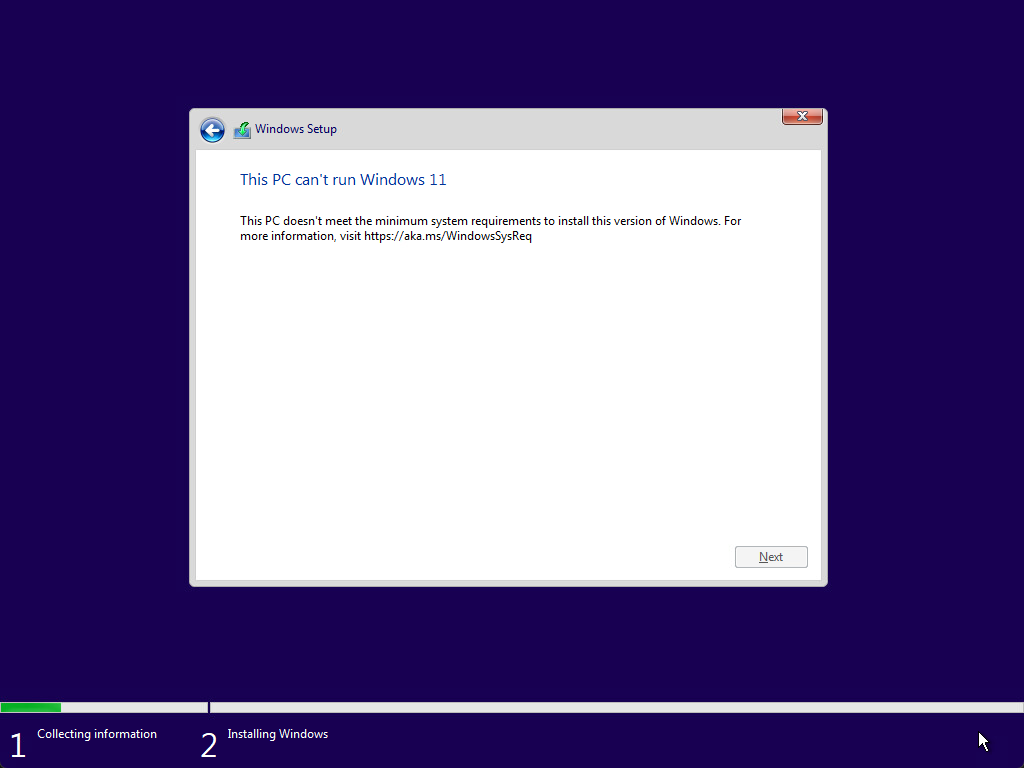
Once you are at this step you have to hit "Shift-F10" to open up the command prompt
[](https://docs.sflservicesllc.com/uploads/images/gallery/2024-09/VQCimage.png)
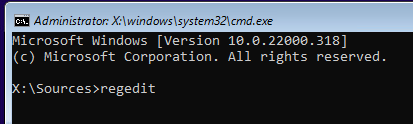
Once the command prompt window is opened type "regedit"
[](https://docs.sflservicesllc.com/uploads/images/gallery/2024-09/7voimage.png)
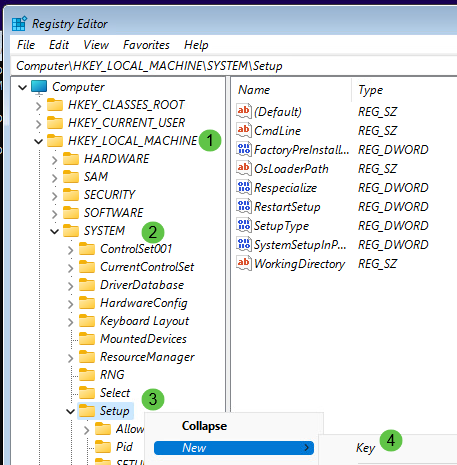
Once opened then navigate to "HKEY\_LOCAL\_MACHINE, SYSTEM, Setup" and then right-click and add a "New, Key"
[](https://docs.sflservicesllc.com/uploads/images/gallery/2024-09/b4Uimage.png)
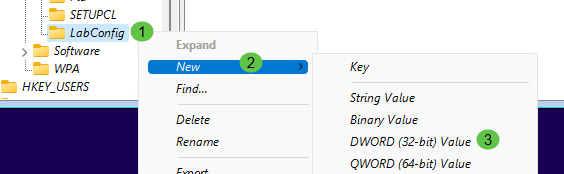
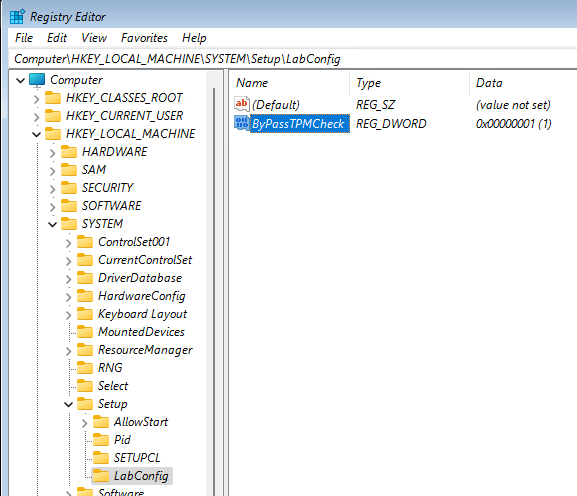
Add the key called "LabConfig" then right-click on the "LabConfig" and add a new "DWORD Value"
[](https://docs.sflservicesllc.com/uploads/images/gallery/2024-09/VBpimage.png)
Add the new value called "ByPassTPMCheck" with a hexdecimal of "1"
[](https://docs.sflservicesllc.com/uploads/images/gallery/2024-09/HRNimage.png)
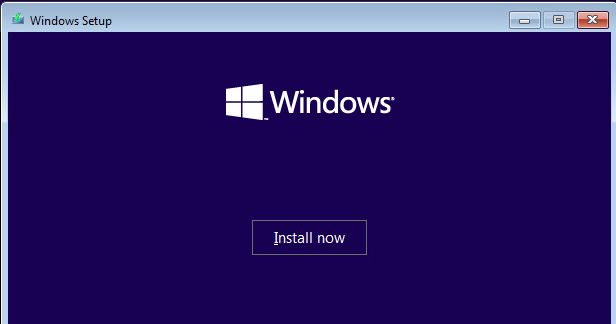
Close every window then click on "Install Now" but do not reboot or the new added key will be lost.
[](https://docs.sflservicesllc.com/uploads/images/gallery/2024-09/d1Zimage.png)